On This Page
Need more help?
 Contact Us
Using the Course Copy Tool
Note: To copy data into a course using this tool, you must be enrolled as a Teacher in the destination course.
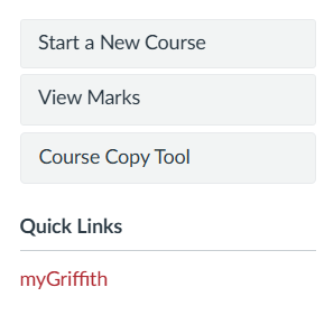
1. Select the course you want to copy into. This course will receive the content.
Via the dashboard in Canvas
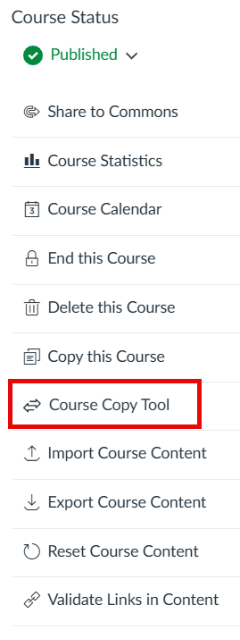
Within the settings page of a Course Site
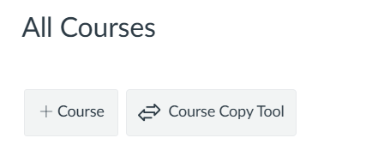
Within Courses > All Courses
2. Select the course you want to copy into. This course will receive the content.
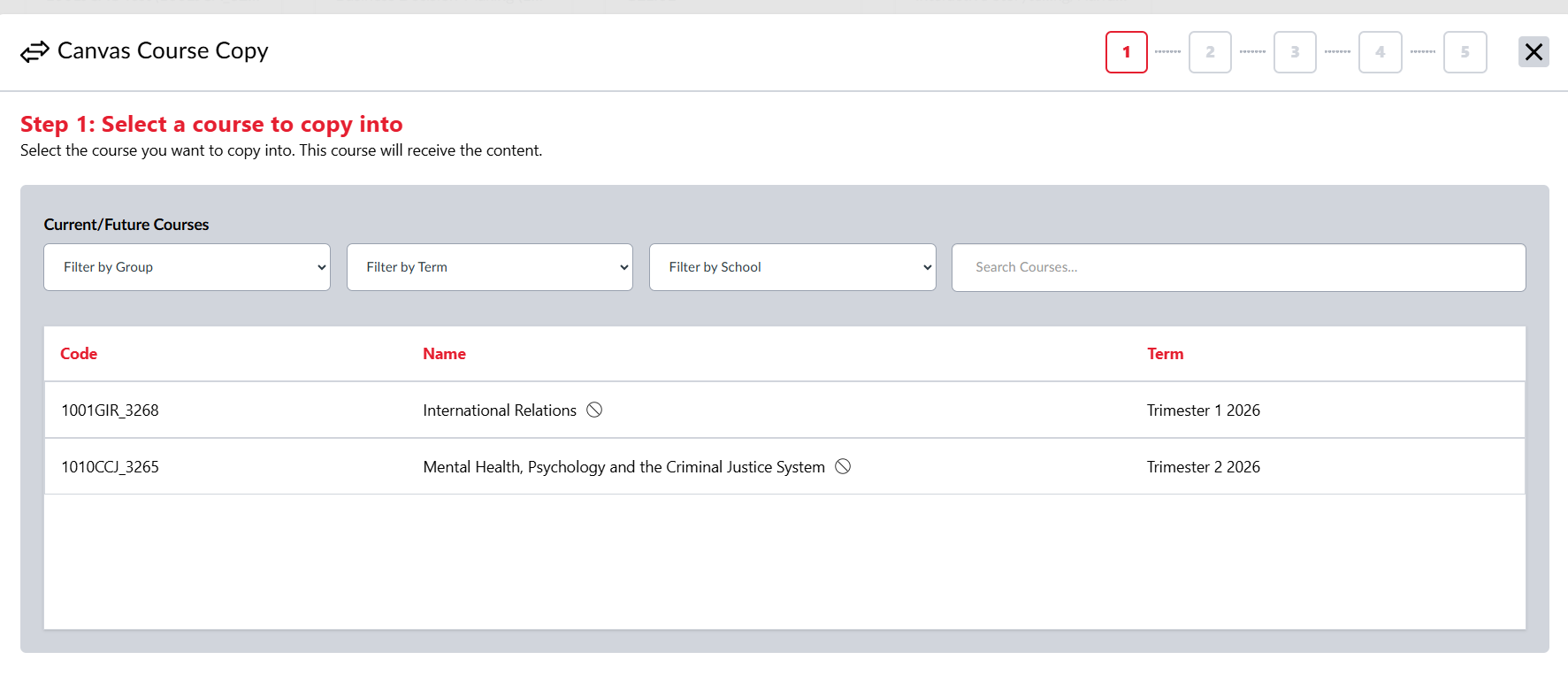
3. Select the course you want to copy from. This is the course that contains the content you want to reuse.
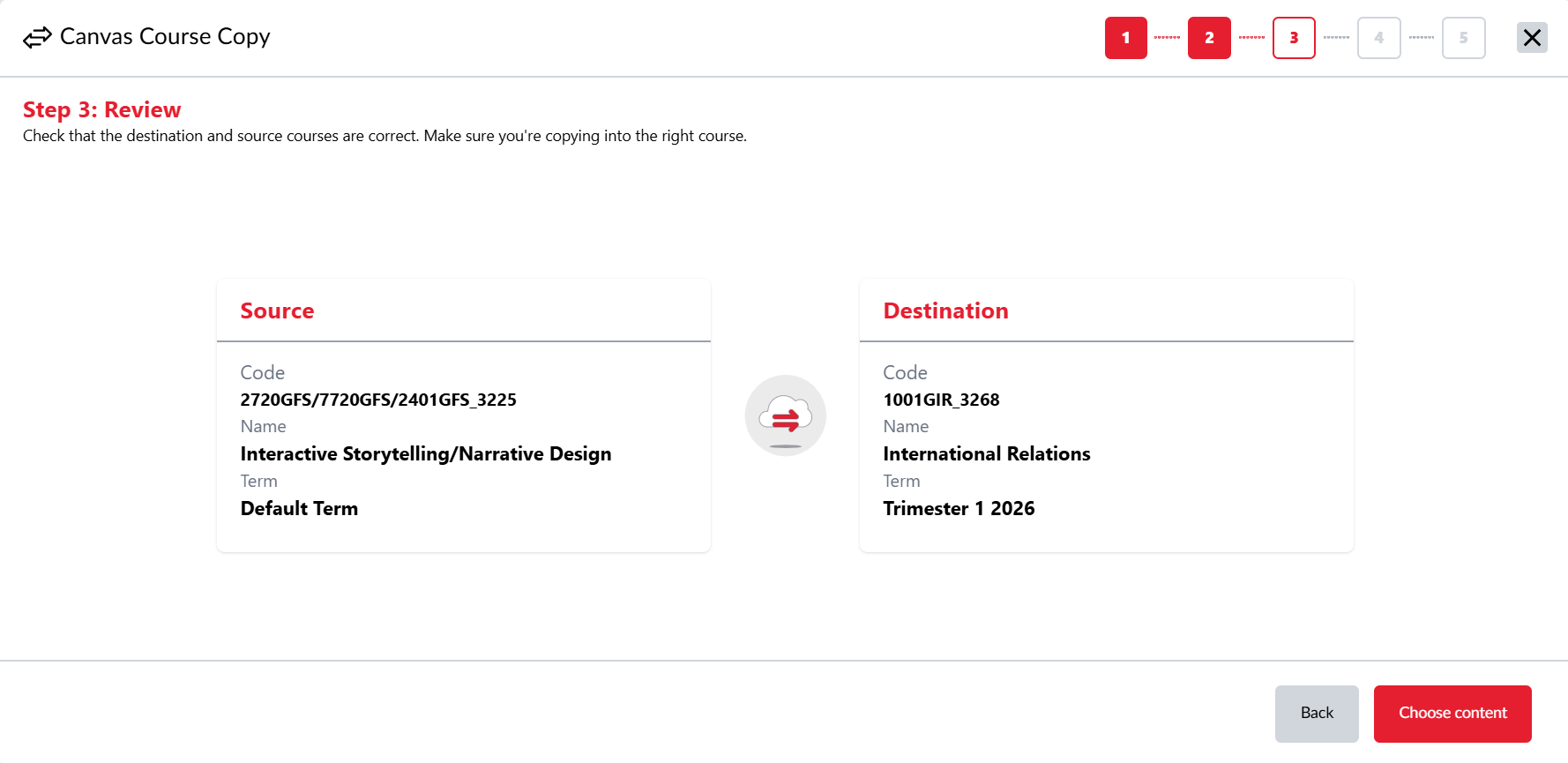
4. Choose content, either checking copy all content or unchecking and selecting the relevant content to be included in the copy.
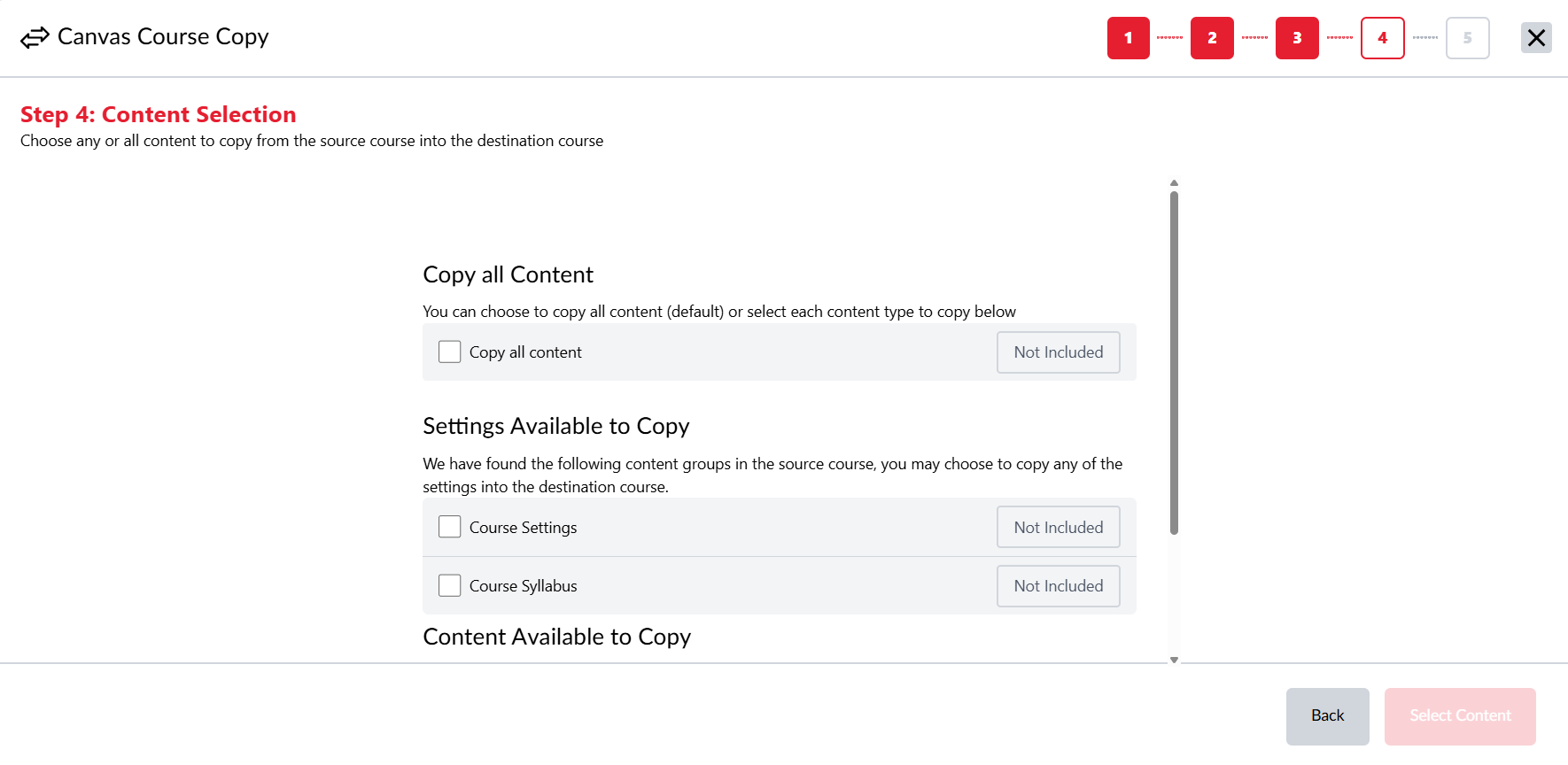
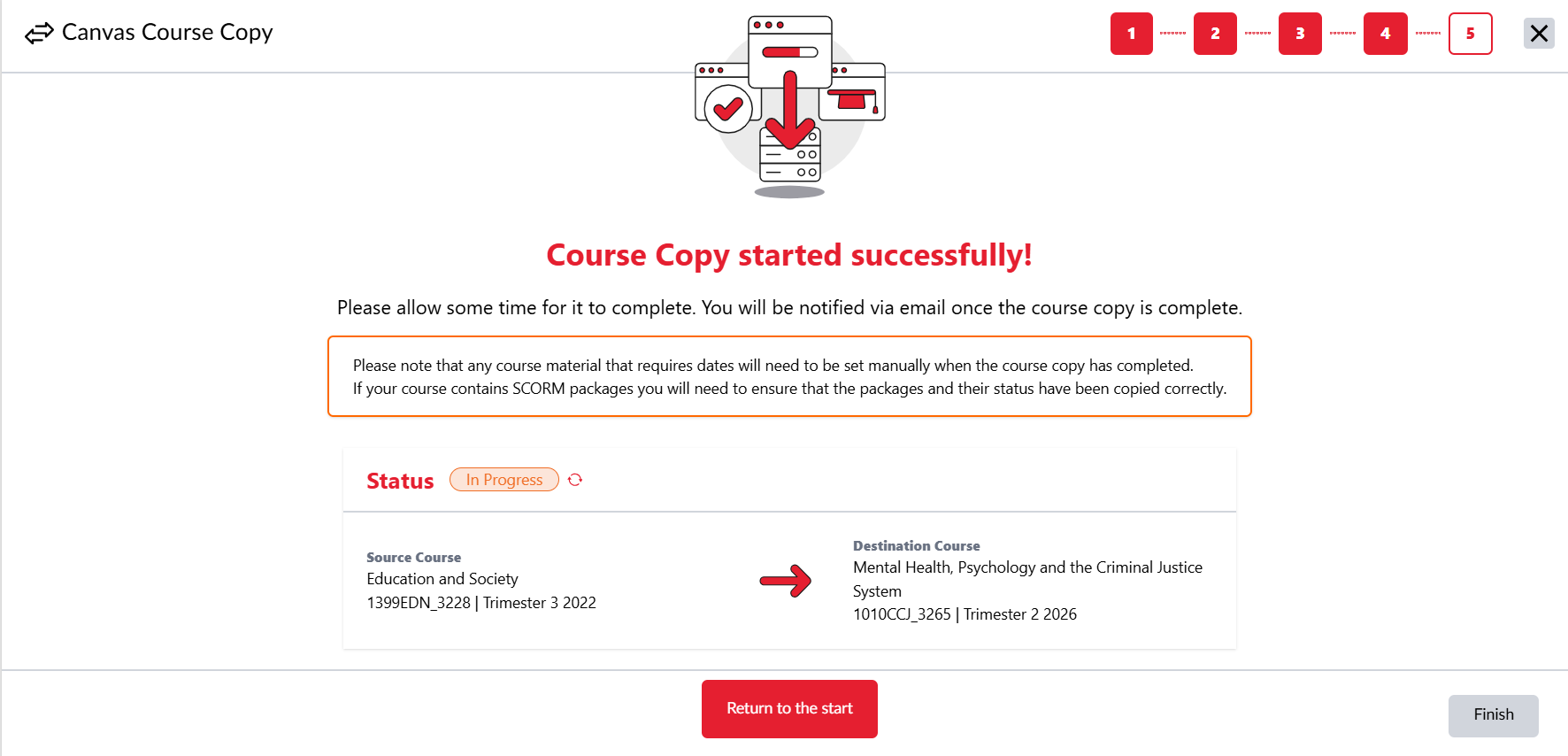
Any course material that requires dates will need to be set manually when the course copy has completed. If your course contains SCORM packages you will need to ensure that the packages and their status have been copied correctly.
5. Course Copy status will remain in progress until the process is complete in which status will display as, Complete.