On This Page
Need more help?
 Contact Us
Microsoft Education
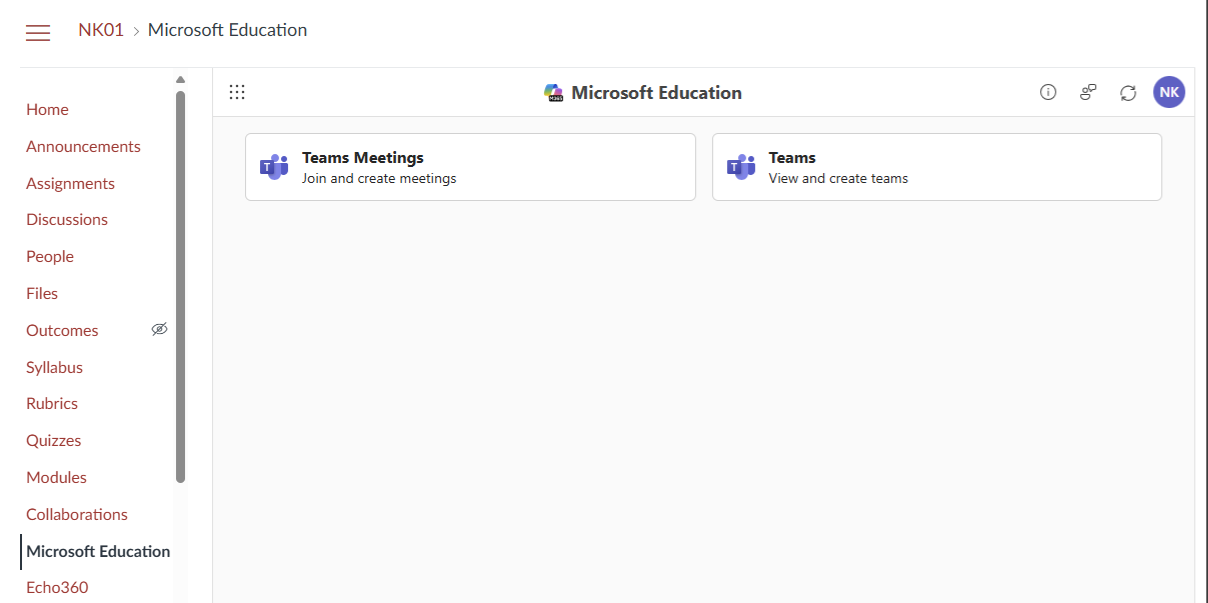
The way you access Microsoft Teams from Learning@Griffith is changing. From Wednesday 10th September, if your course uses Teams Meetings or Class Teams, a new ‘Microsoft Education’ link on the left hand side of your course will replace the current links to Teams Meetings and Class Teams functionality (these deprecated links will be removed on Monday 15th September).
Class Teams created in the old LTI will be backwards compatible with the new LTI. Teams Meetings created in the old LTI will not appear in the new LTI, however the meetings will continue to be within student's outlook calendars.
Enabling Microsoft Education in Canvas
To create meetings and for students to access the Teams site through Canvas, a staff member first needs to finish the setup by clicking on the Microsoft Education course LTI.
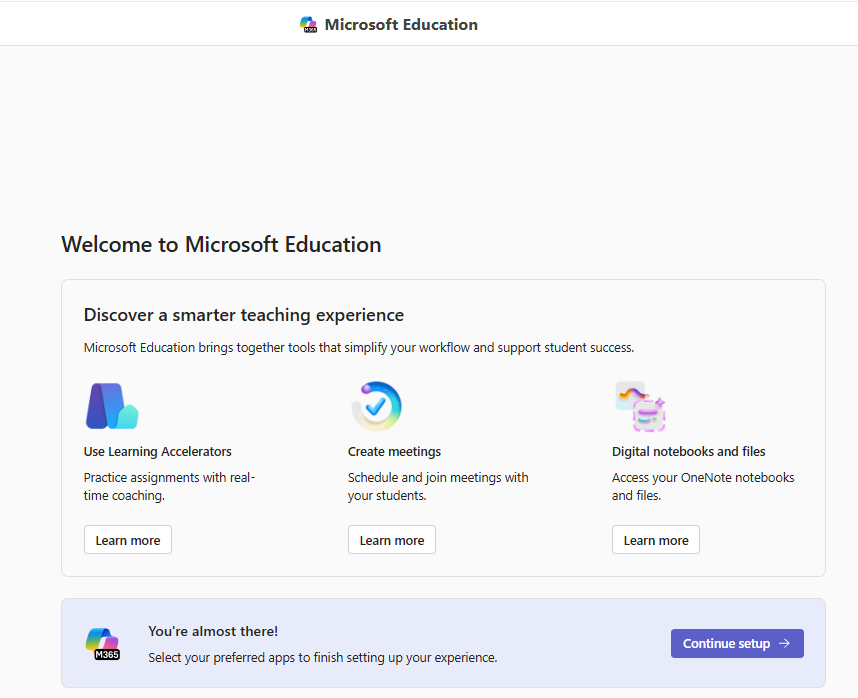
Select the Continue Setup button.
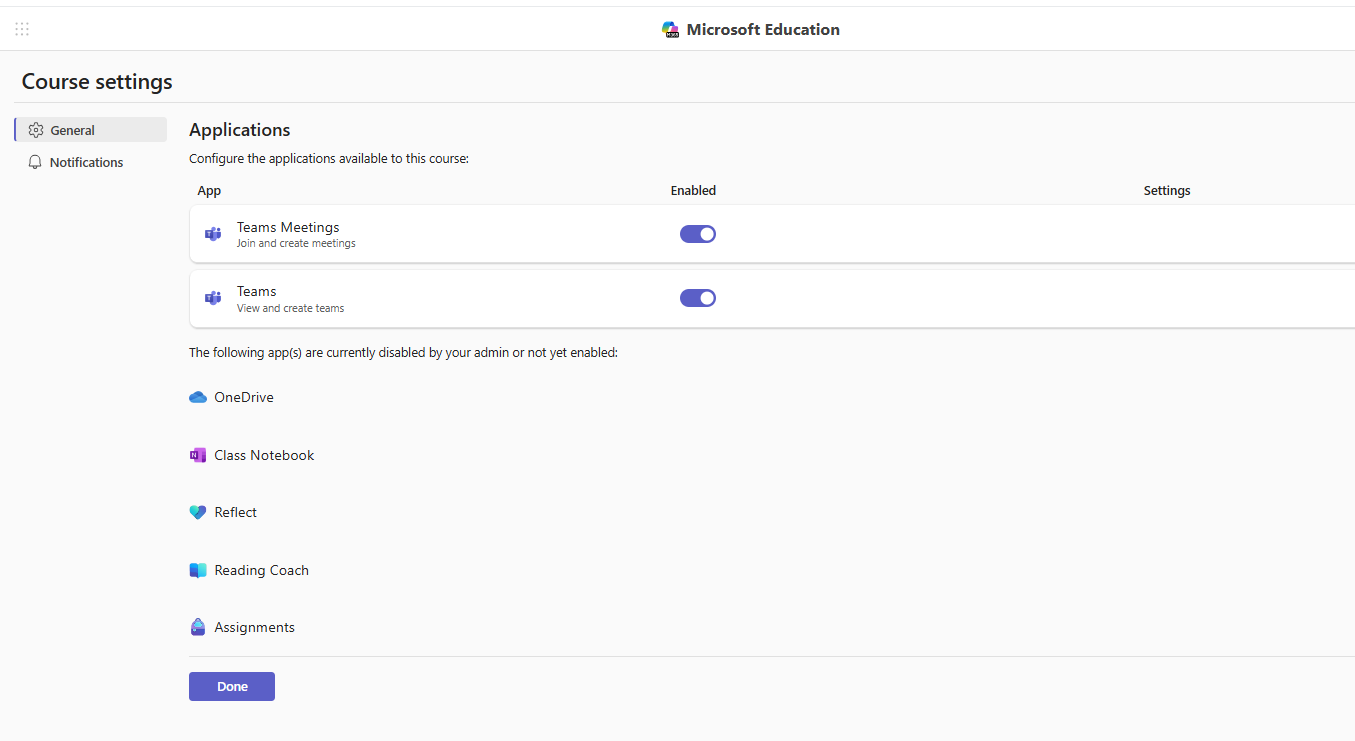
From here, select the Done button. The page will load for a minute then the setup process will be complete.
Creating Meetings In Microsoft Education
The Teams Meeting page has been updated in Microsoft Education with new tabs for Upcoming, My meetings (Meetings you have scheduled), Previous meetings, and Recordings/files.
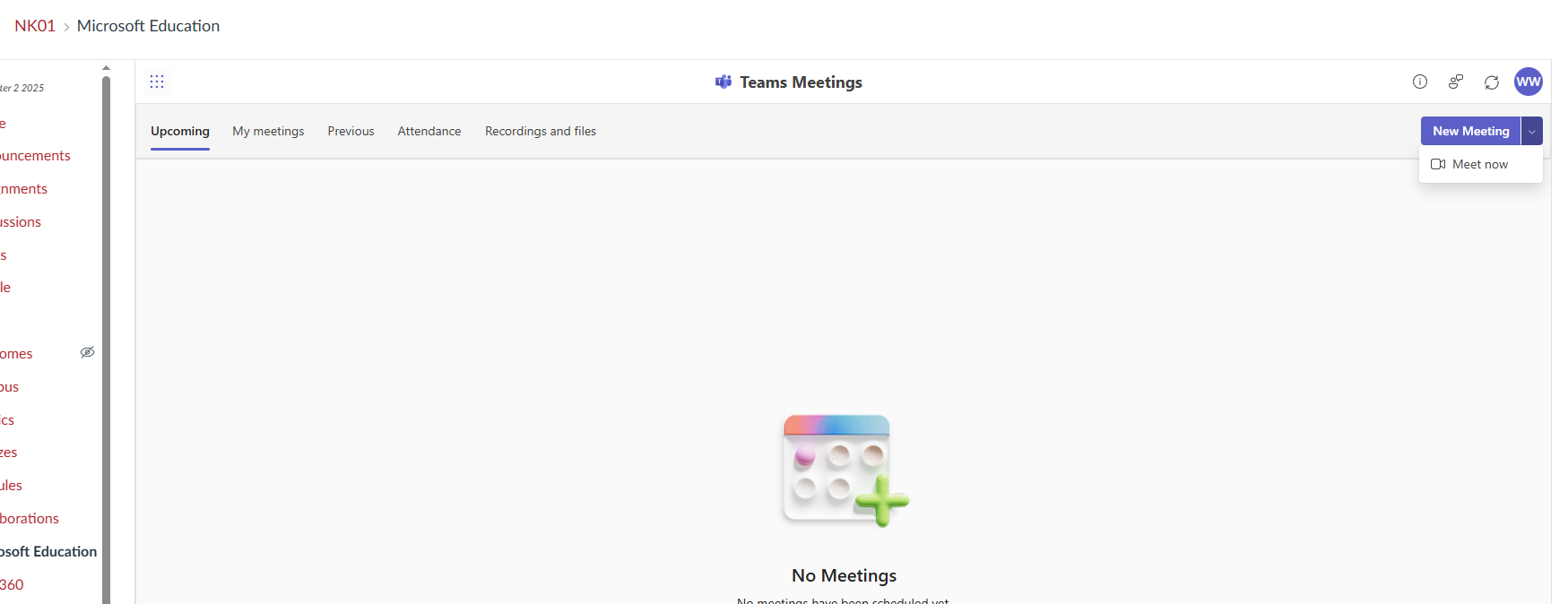
Meetings can still be scheduled though the 'New Meeting' button :
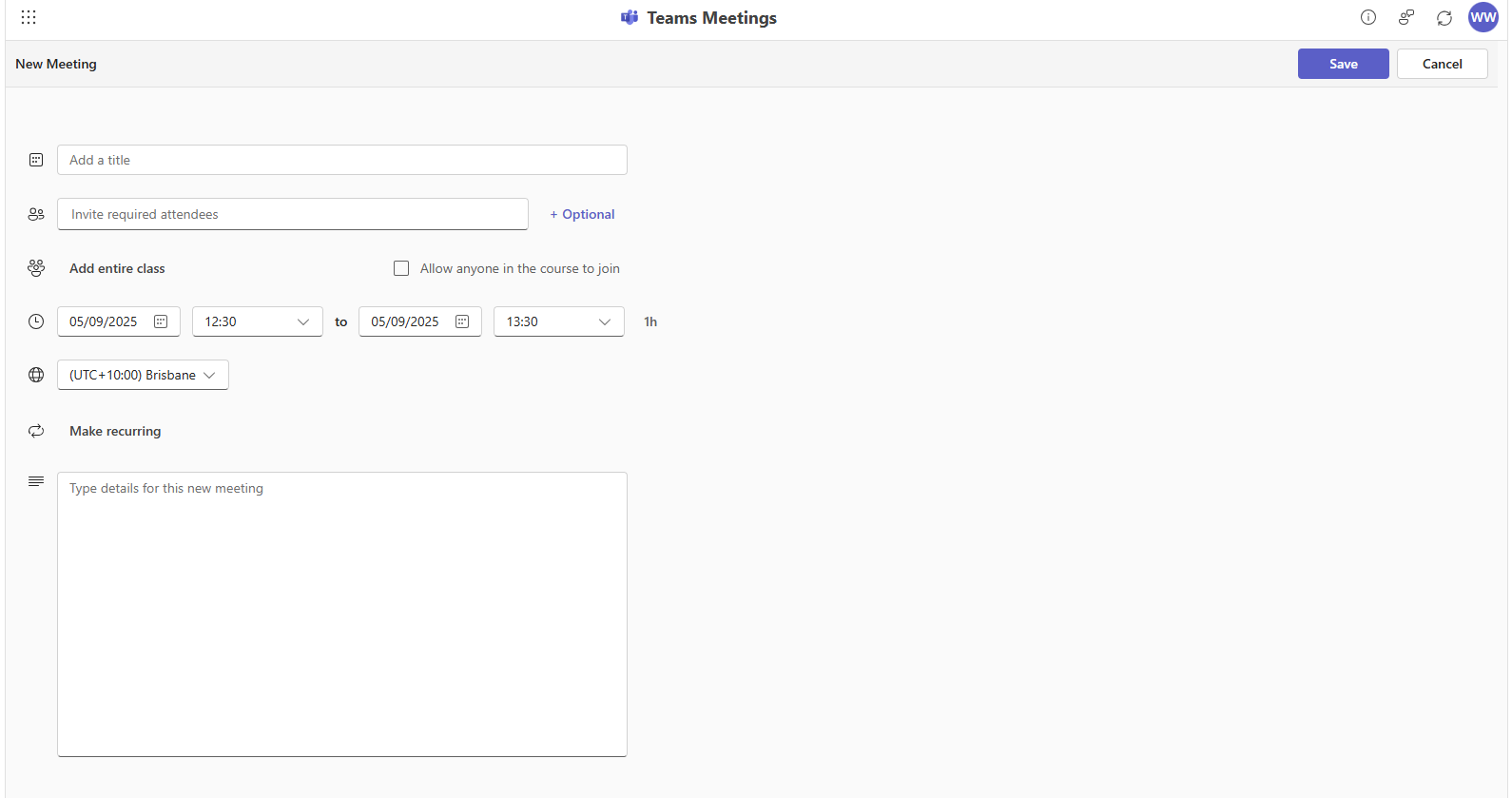
Note: Meetings that are recorded through this page are save to your Griffith personal Onedrive
Accessing Course MS Teams Site
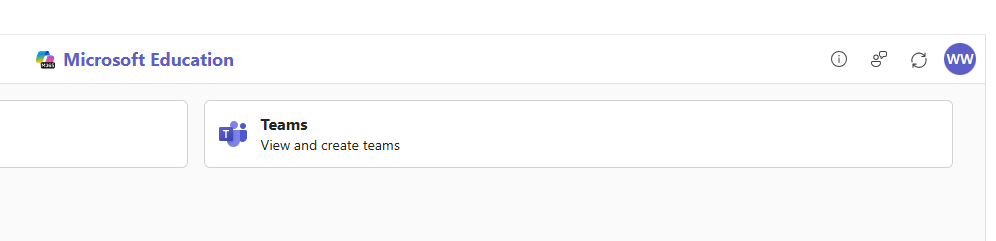
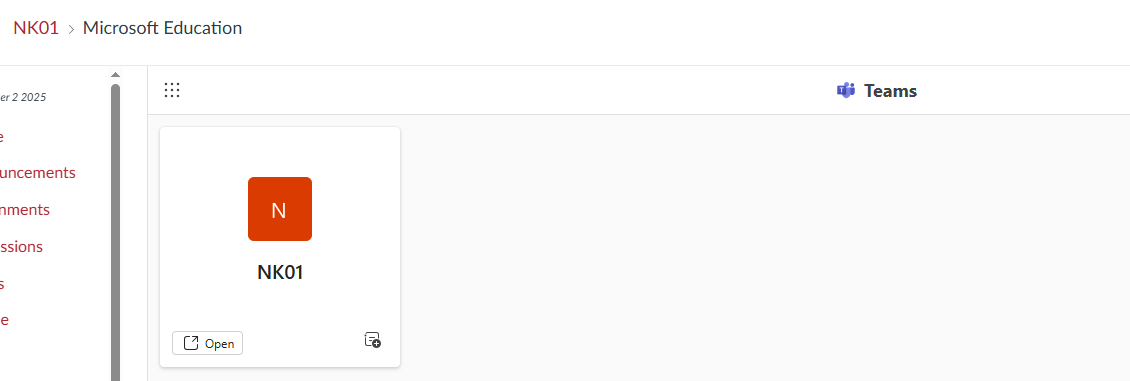
The course Teams site is still accessible through the Microsoft Education menu link by select the "Teams" option: