Library catalogue help
- About the library
- Resources and borrowing
- Study and assignment skills
- Research and publishing
- Teaching
- Contact the library
Find and access
Search the Library catalogue like Google to find and access:
- journals and journal articles
- books and ebooks
- conference proceedings and papers
- streaming videos and DVDs
- streaming audio and CDs
- music scores
- open access content.
Discover databases
Use library guides to find:
- databases for your discipline
- theses
- encyclopedias and dictionaries
- standards and patents
- statistics
- news and current affairs
- research data.
How-to
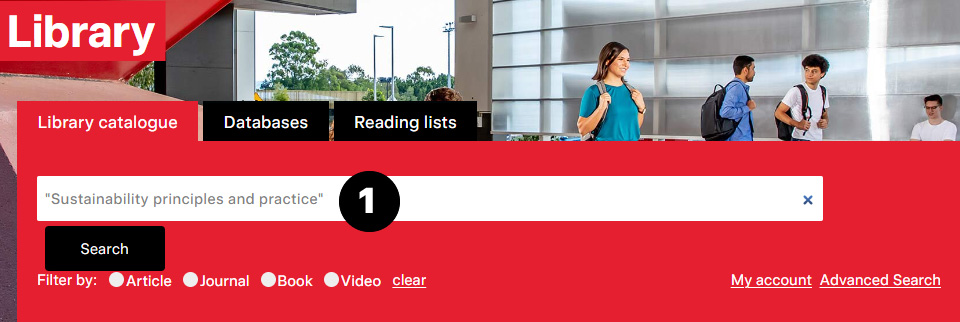
- Enter the title in the Library catalogue search. Use double quotes to search for an exact phrase (for example, "Sustainability principles and practice").
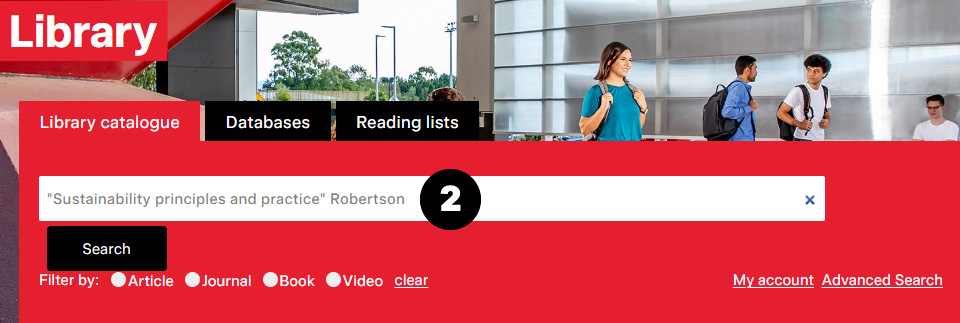
- Enter the author's surname if known, avoid first names and initials (for example, use Robertson instead of Robertson, M or Robertson, Margaret).
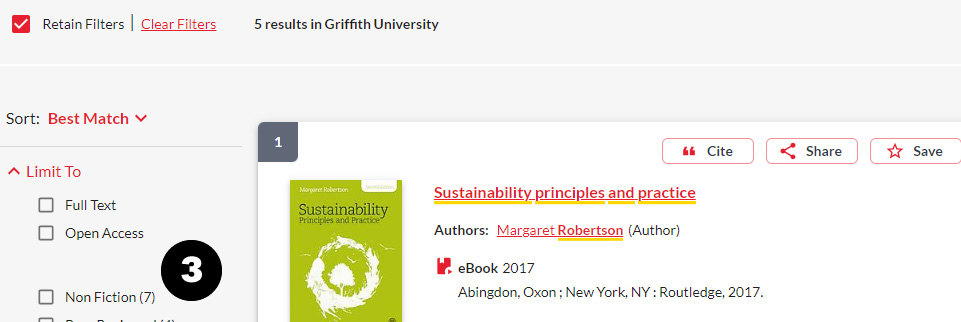
- Use the filters to refine your results, if required.
Request a book (Griffith staff and students only)
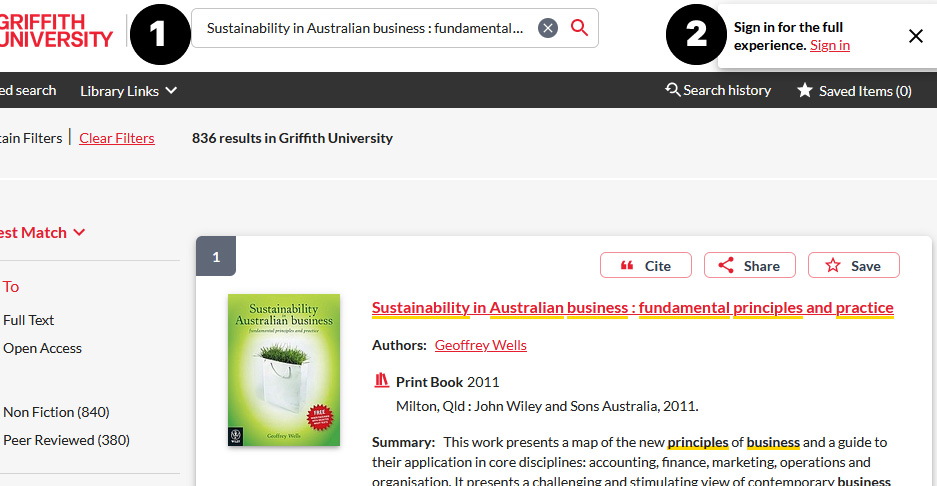
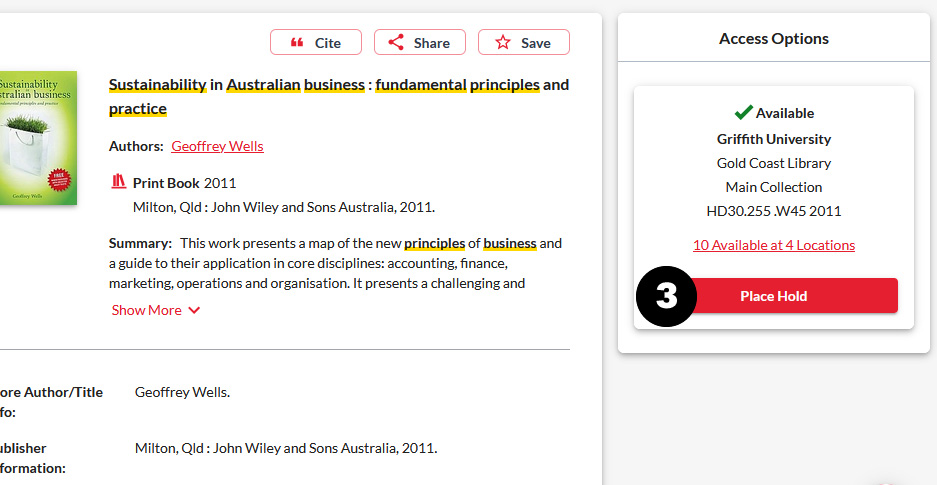
- Search for the item in the Library catalogue.
- Sign in to My Account.
- Click Place Hold.
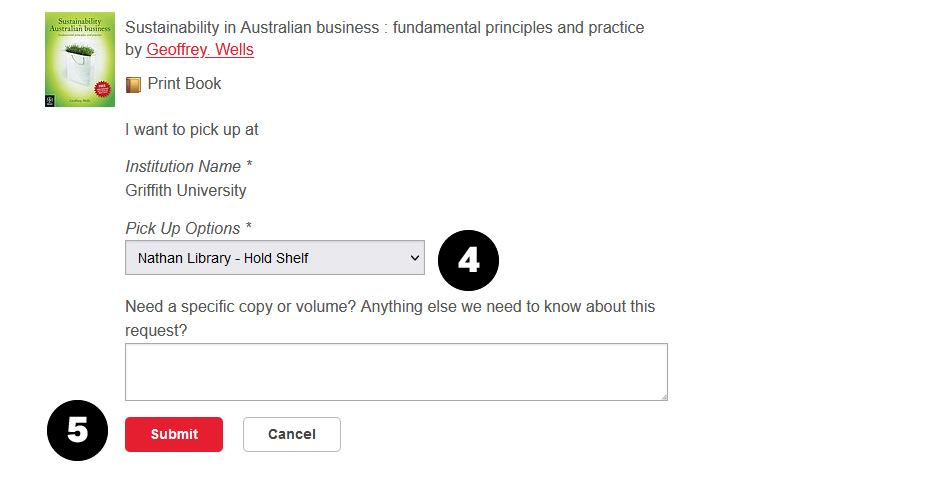
- Select the campus where you will collect the hold using the Pick Up Options drop-down menu.
- Click Submit.
Collect your hold
- It can take two to three working days for an item to be delivered to your chosen pick-up location.
- You will receive an email to your Griffith University email account, when the item is ready to borrow.
- Your item will be held on the Holds shelf for seven (7) days, shelved by the item call number as shown in the hold pickup email.
You can check the status of your holds and cancel holds in My Account.
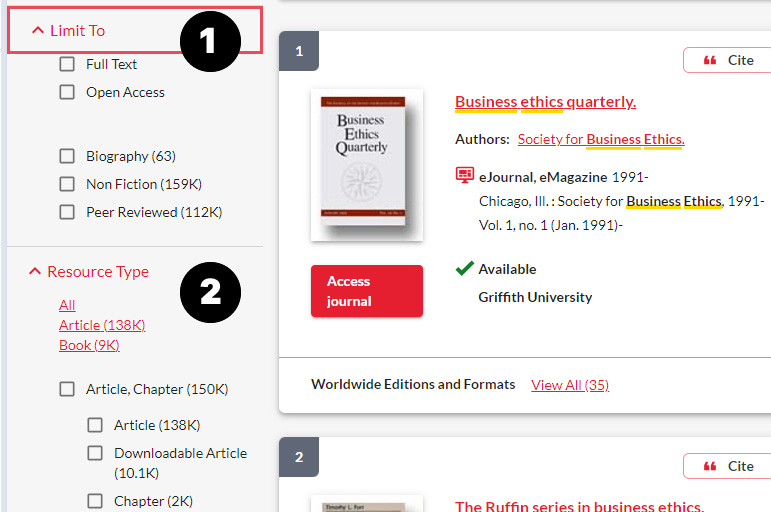
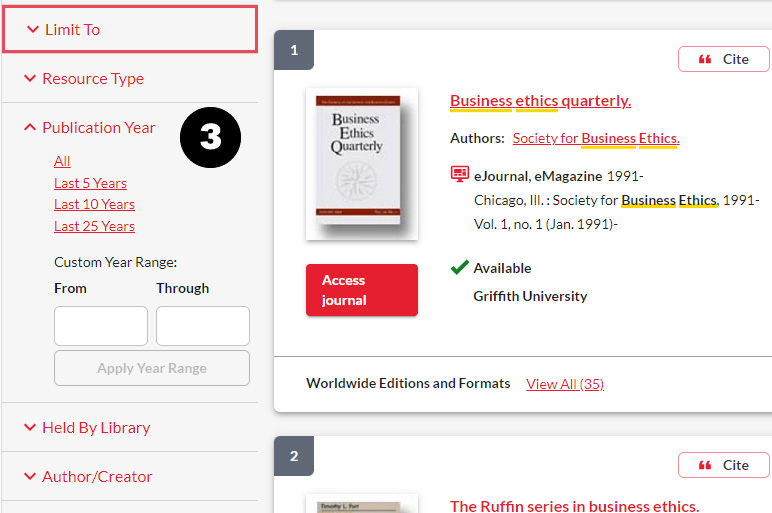
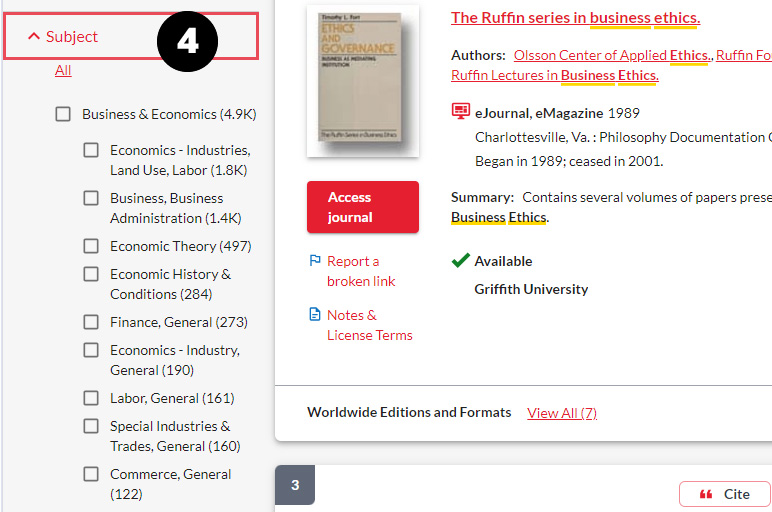
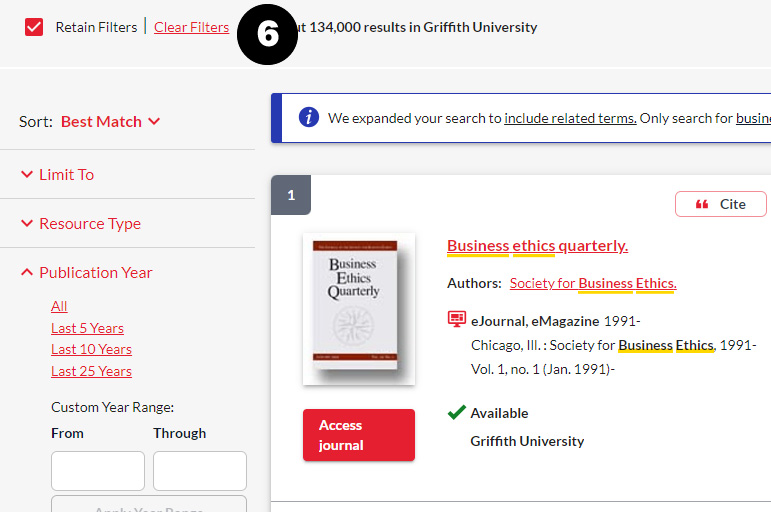
To reduce the number of search results retrieved, use the filters in the left-hand navigation panel.
- In the Limit To section choose one or more options, for example Full Text, Open Access, or Peer Reviewed.
- In the Resource Type section select Article and Downloadable Article to limit results to articles only.
- In the Publication Year section select an option for example Last 5 Years, or enter a Custom Year Range and click Apply Year Range to refine your results.
- In the Subject section choose one or more relevant subjects.
- Use a combination of filters that are relevant to your research needs.
- Click Clear Filters or delete them individually.
Find academic/peer review content
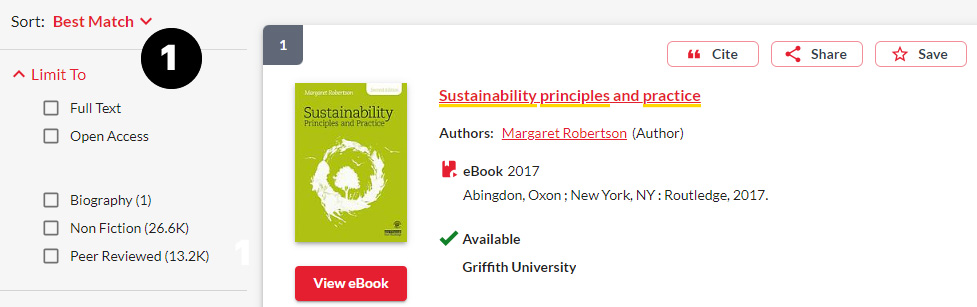
- When searching for academic content use the filters in the left-hand navigation panel to limit your results.
- In the Limit to section select Peer Reviewed.
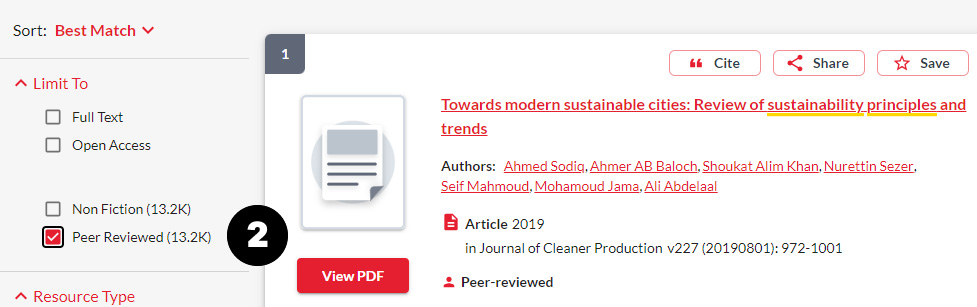
Note: The Peer Reviewed filter applies at a journal level rather than at the article level. Some articles, for example opinion pieces or letters may display as Peer Reviewed but are not. It is important to evaluate your sources when looking for academic content.
There are several ways to find more content from your search results:
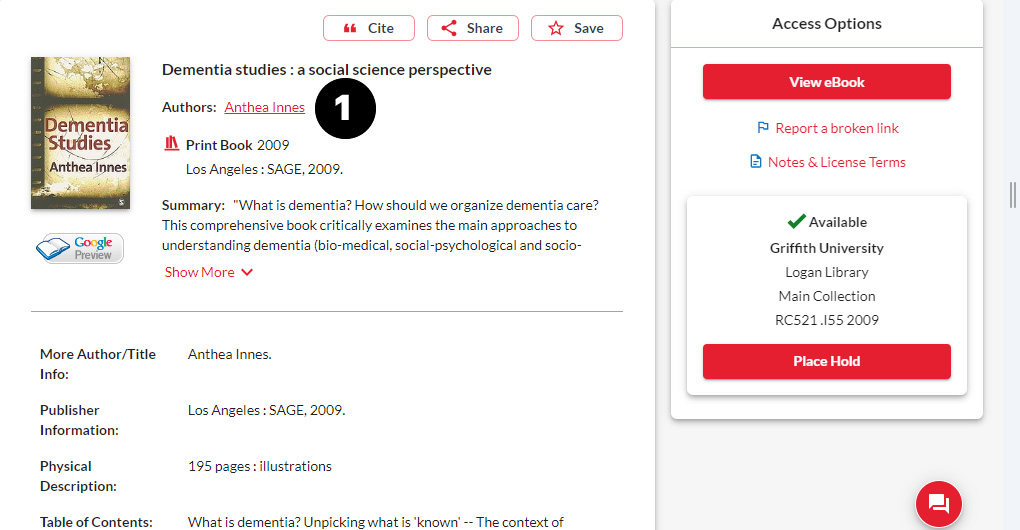
- Click the author's name to find other resources by them.
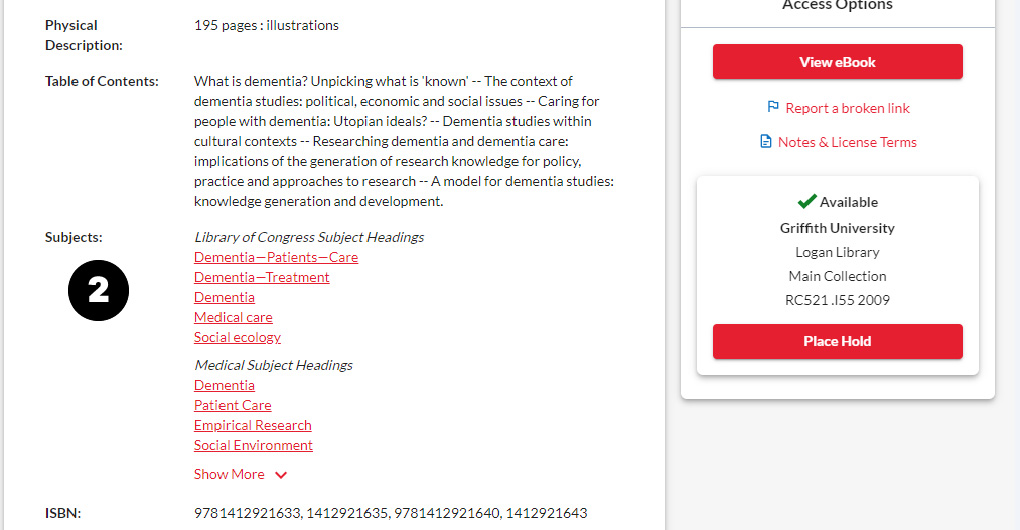
- From the item record navigate to the Subjects assigned to it. Click Show More if required, and click the relevant term to view additional resources.
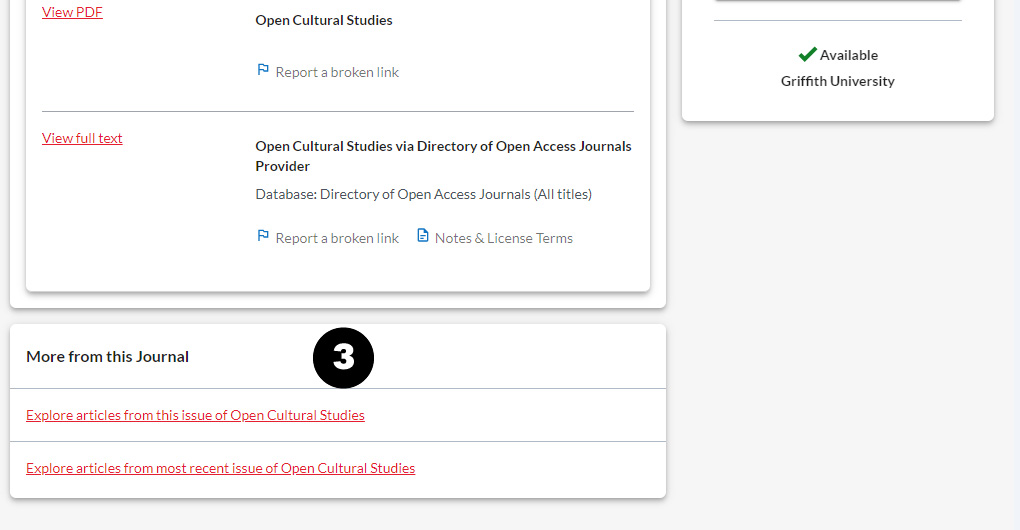
- For journal articles click the link below More from this Journal to see articles from the same issue or the most recent one.
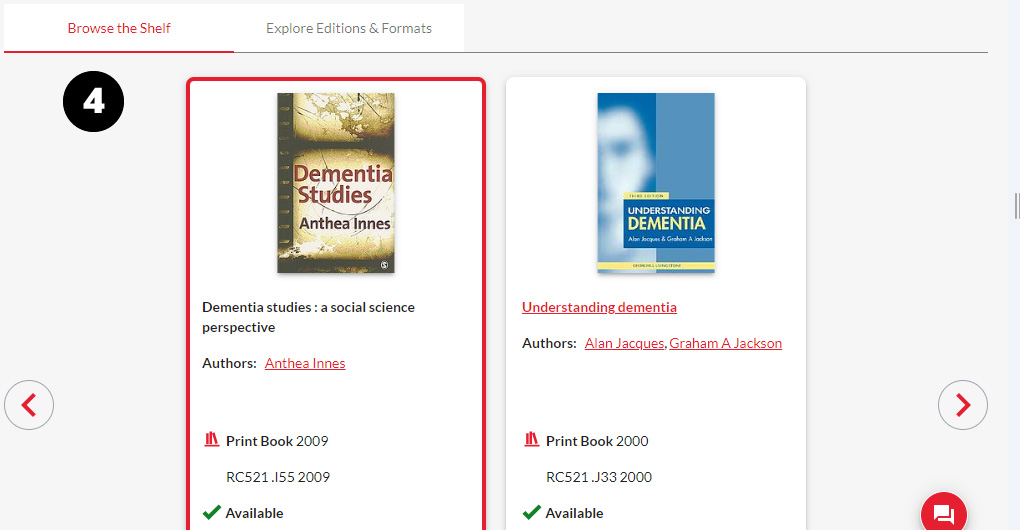
- For some items you will be able to Browse the Shelf. Navigate to the bottom of the record to view items listed under Browse the Shelf. Click the backward or forward arrow to browse additional items.
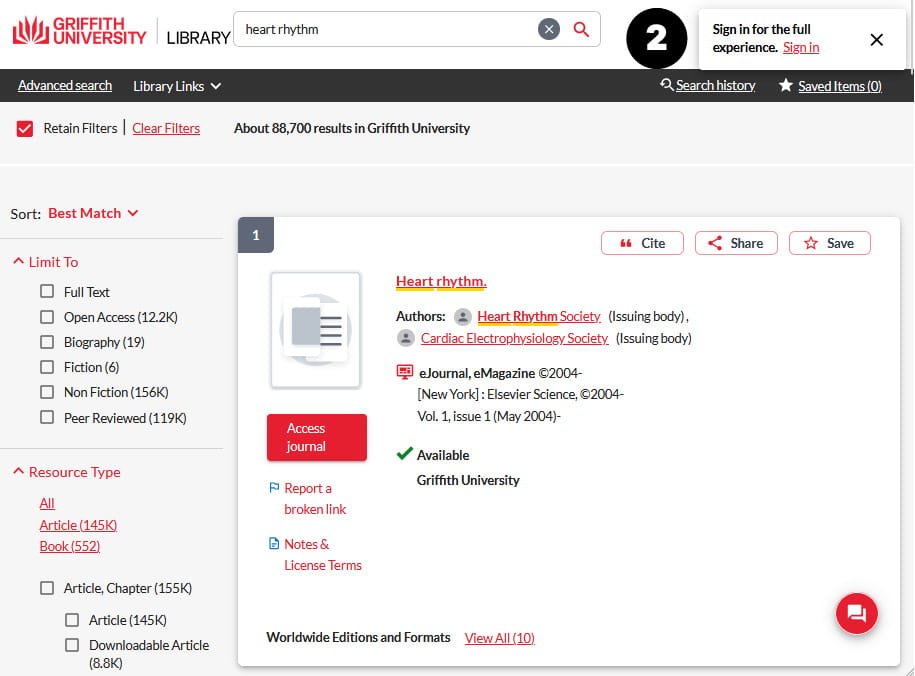
To save items:
- Search the library catalogue.
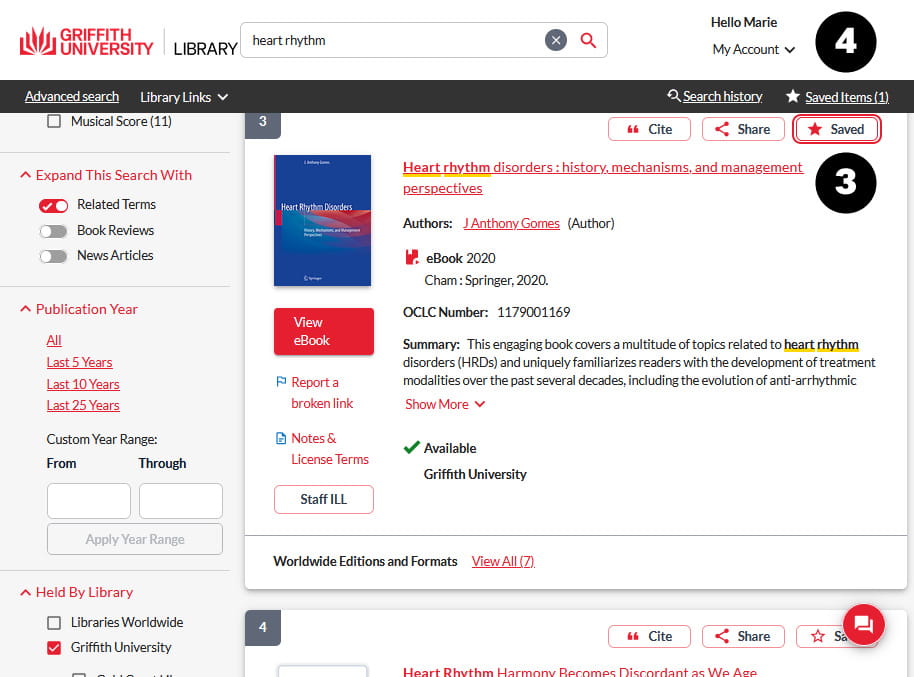
- Sign in to your account.
- Click Save for each relevant item in the results. The record displays as Saved.
- The item is added to the Saved Items list. The list is for the current session only.
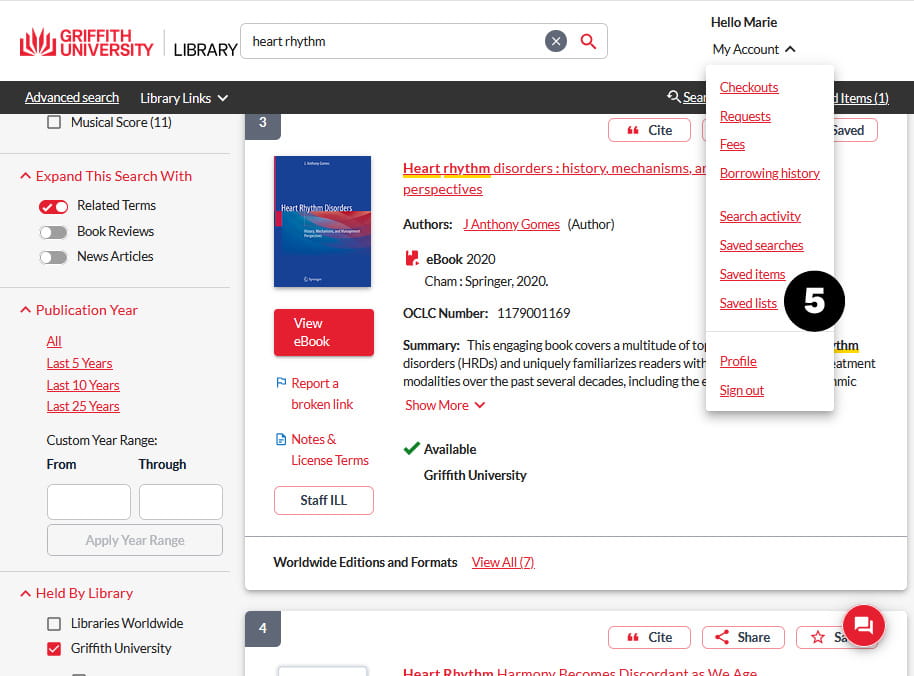
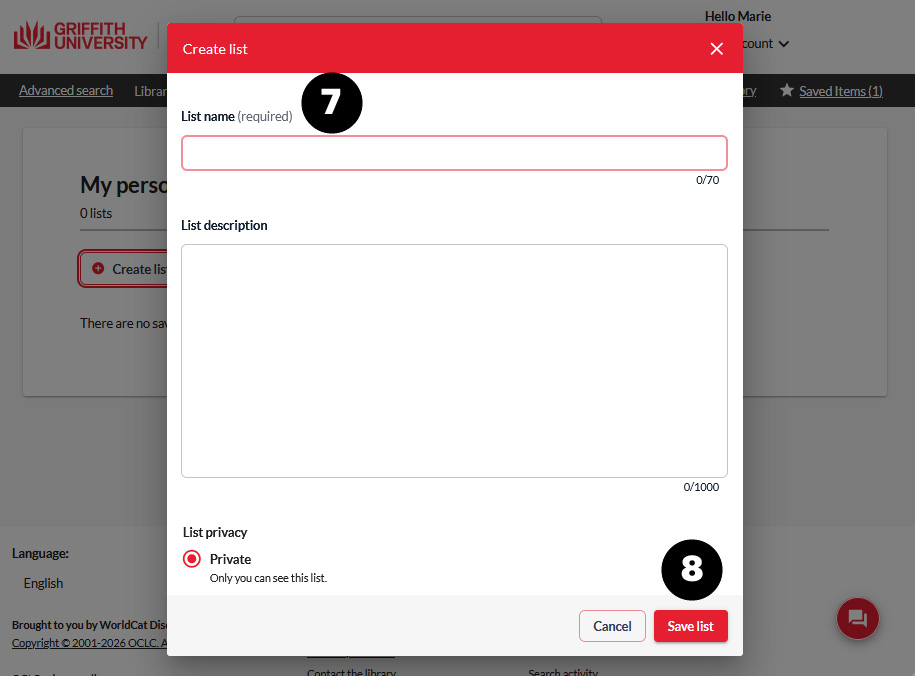
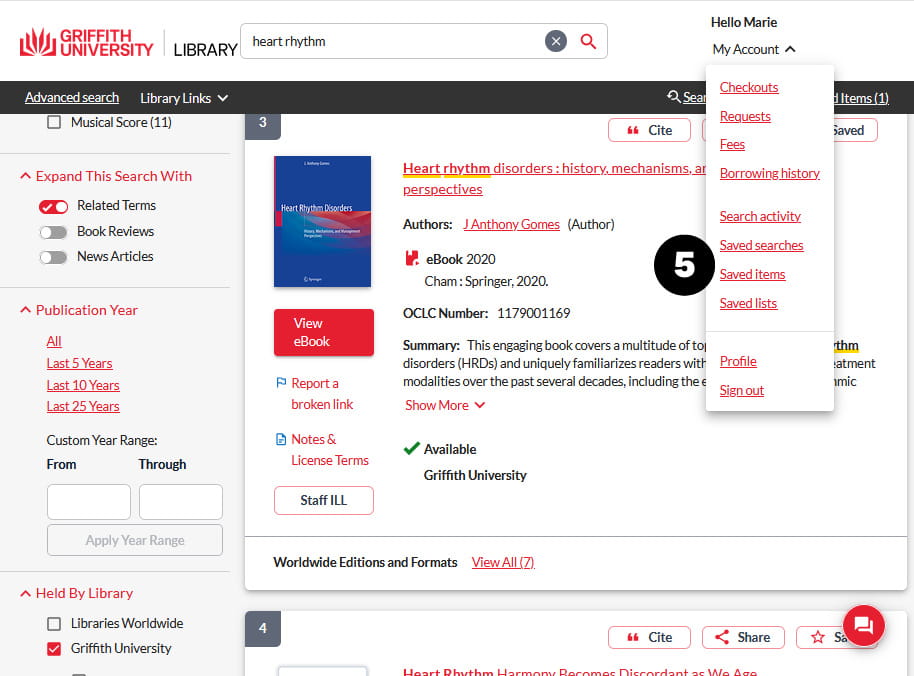
- Click My Account > Saved Lists.
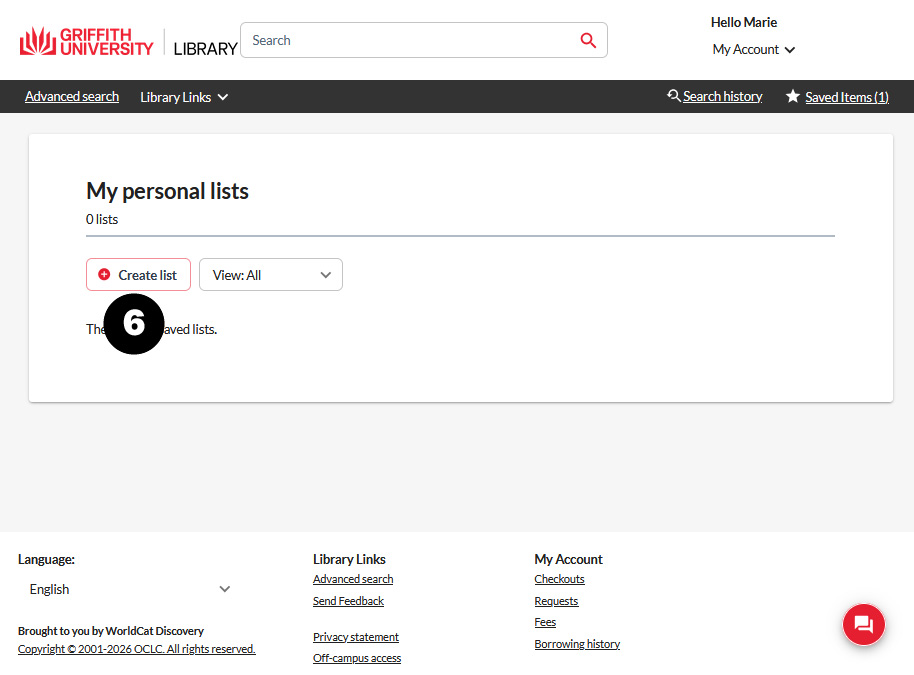
- Click Create list.
- Add a List name and description.
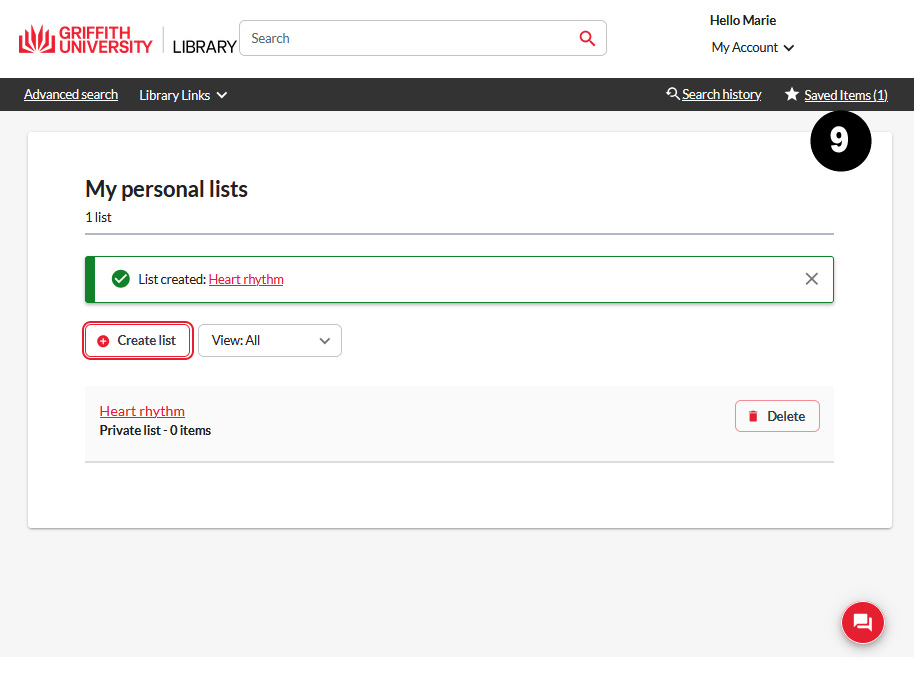
- Click Save list.
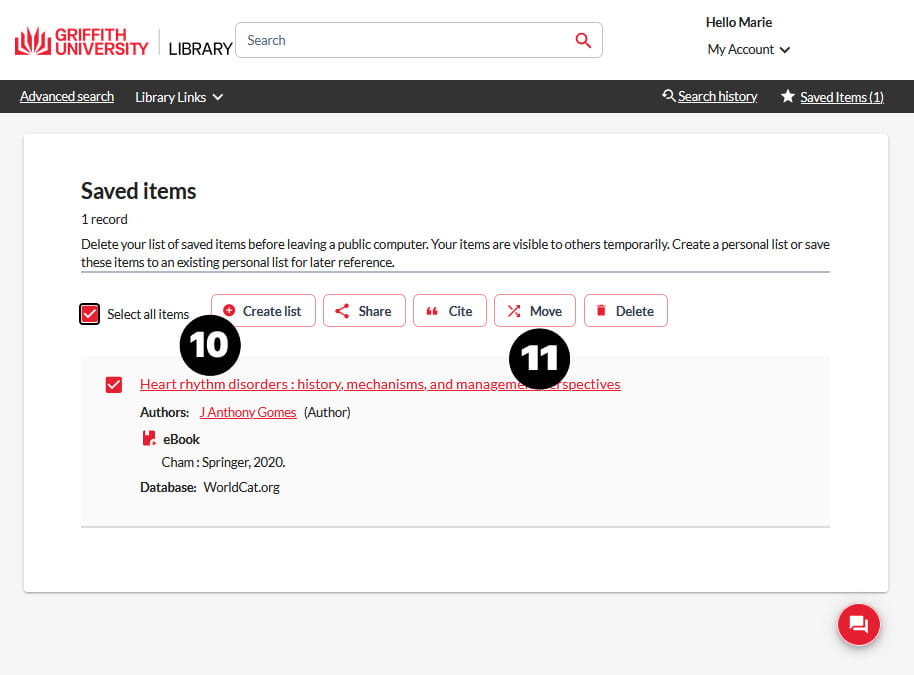
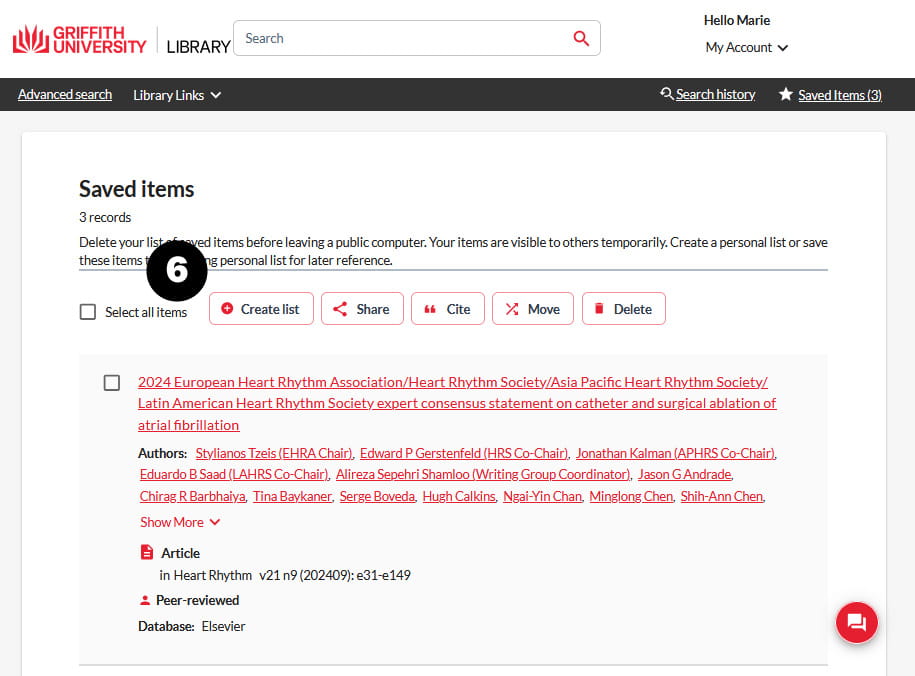
- Click Saved Items.
- Click Create list to add to a new list. Alternatively, Select all items or individual items.
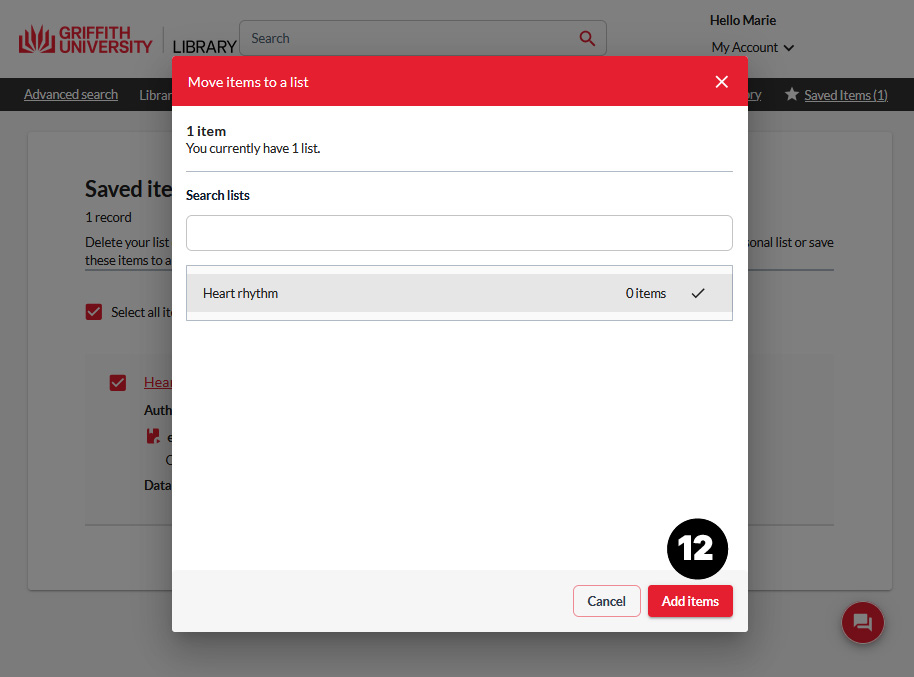
- Click Move to add to an existing list.
- Select the list and click Add items.
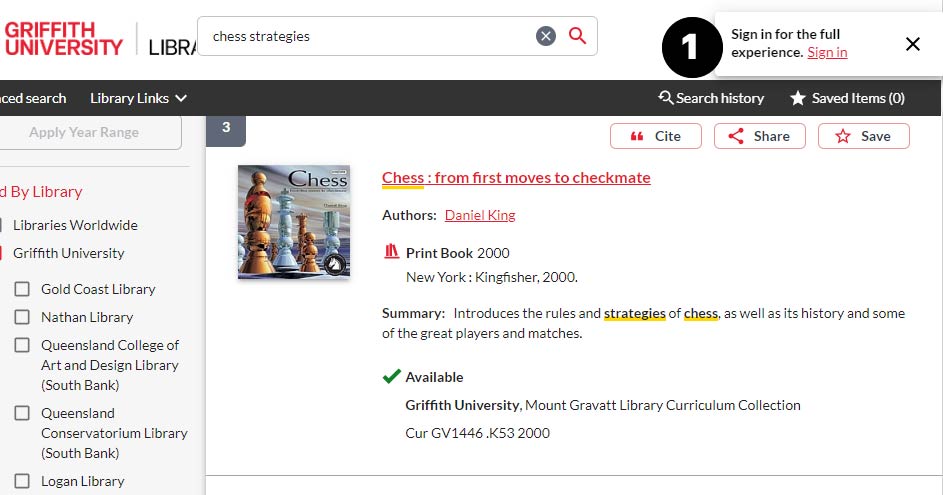
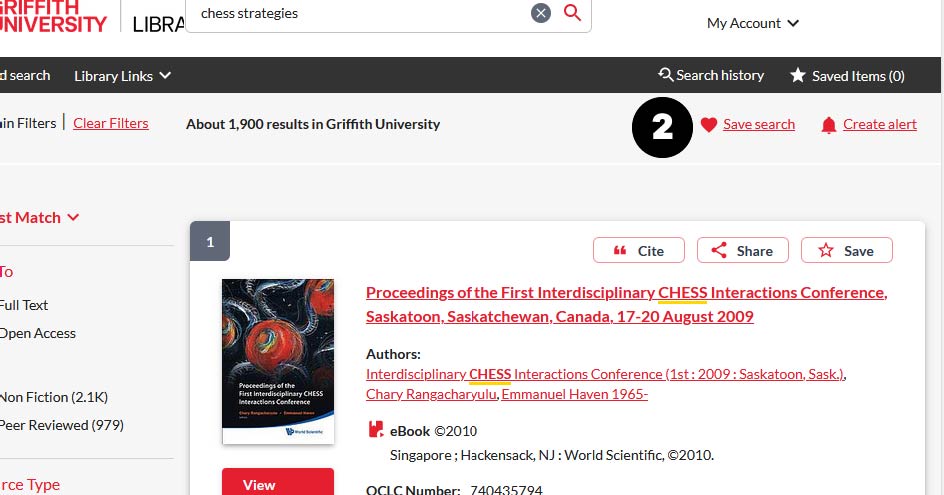
To save a search:
- Sign in to your account.
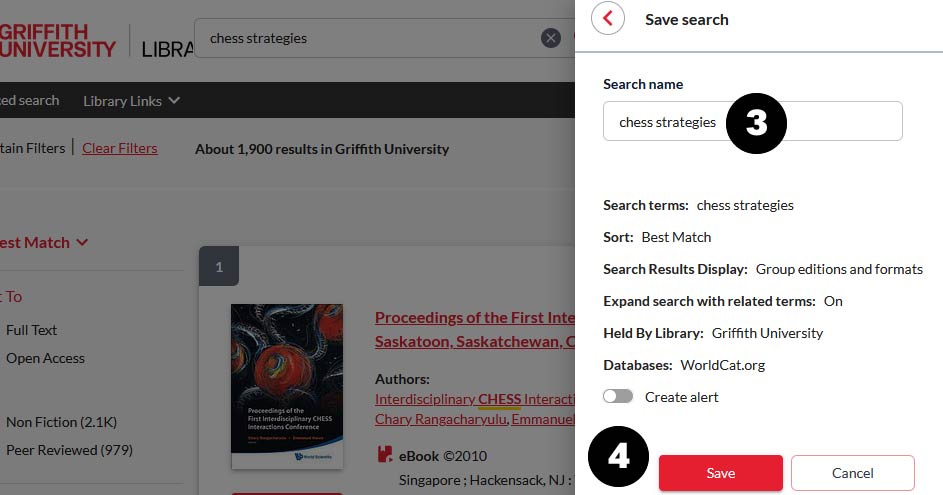
- Click Save search.
- The Save search drawer displays. Update the Search name if required.
- Click Save.
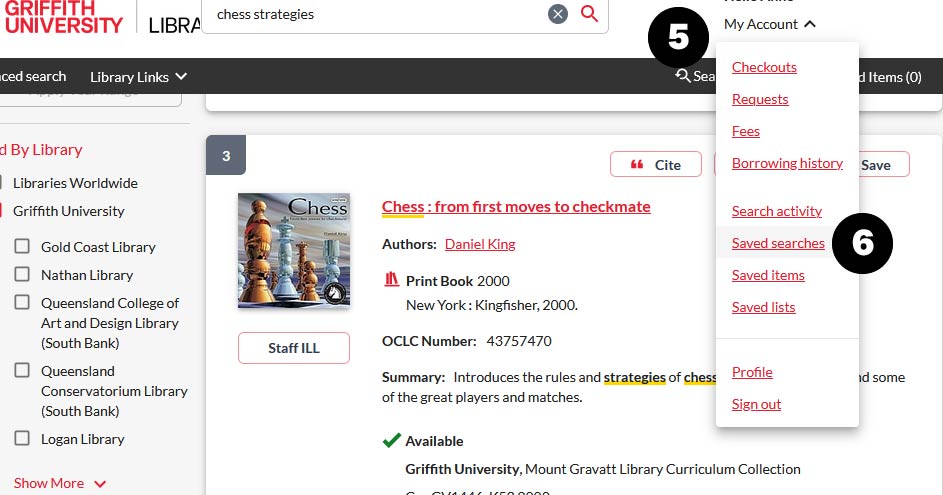
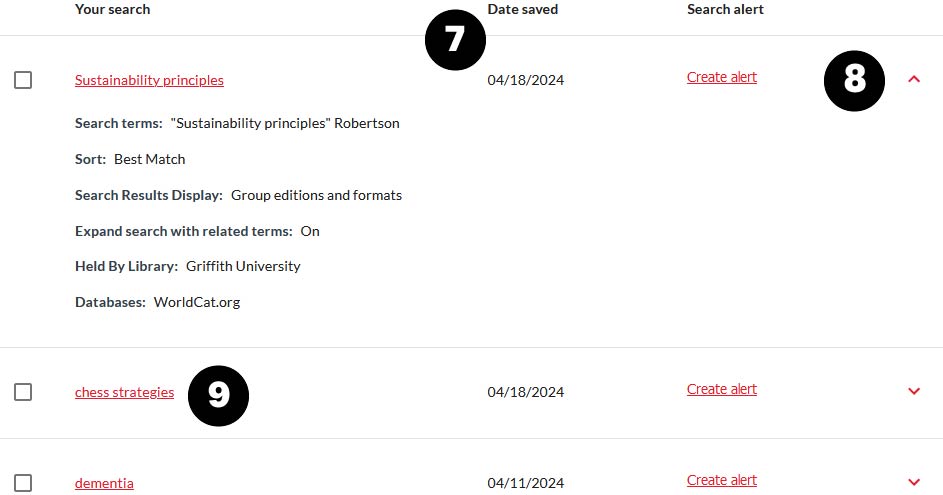
- To view your search, click My account.
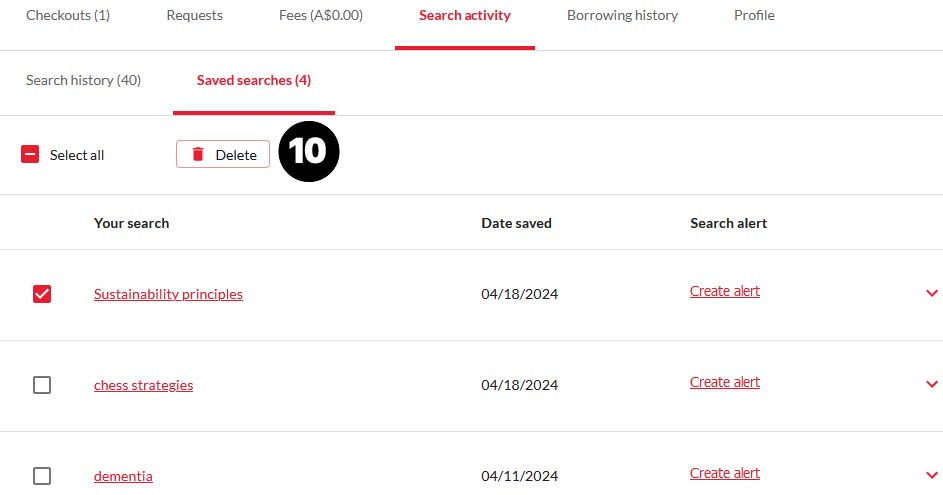
- Select Saved searches.
- A list displays ordered by Date saved.
- To see filters that were applied to the search, click the down arrow.
- Click the Search name to re-run it.
- To remove a search, select it and click Delete.
Share, cite or move saved items
To export a search:
- Search the library catalogue.
- Sign in to your account.
- Click Save for each relevant item in the results. The record displays as Saved.
- The item is added to the Saved Items list. The list is for the current session only.
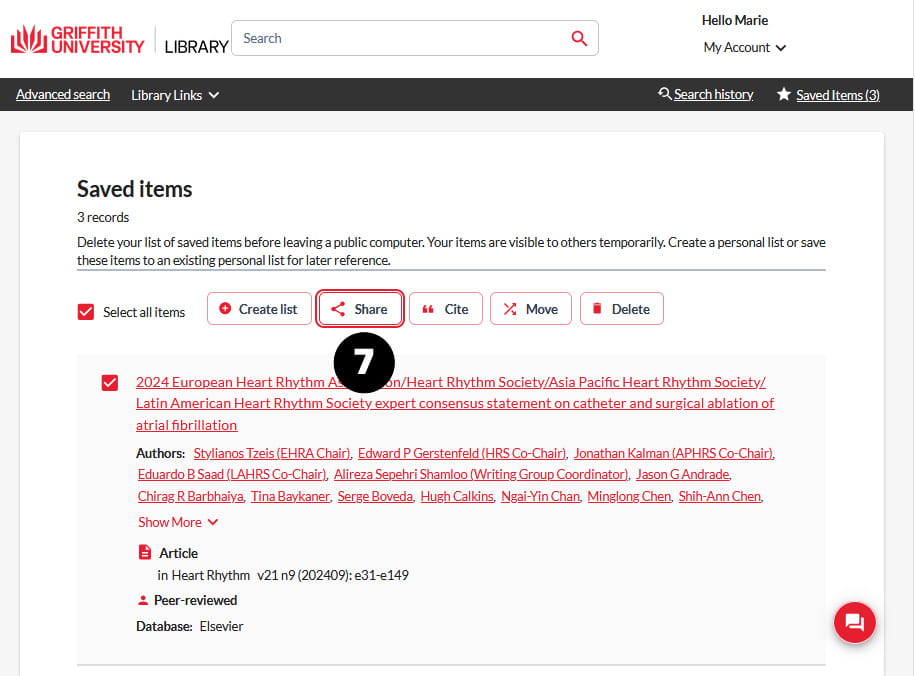
- Click My Account > Saved items.
- Choose an option—Create list, Share, Cite, Move or Delete items.
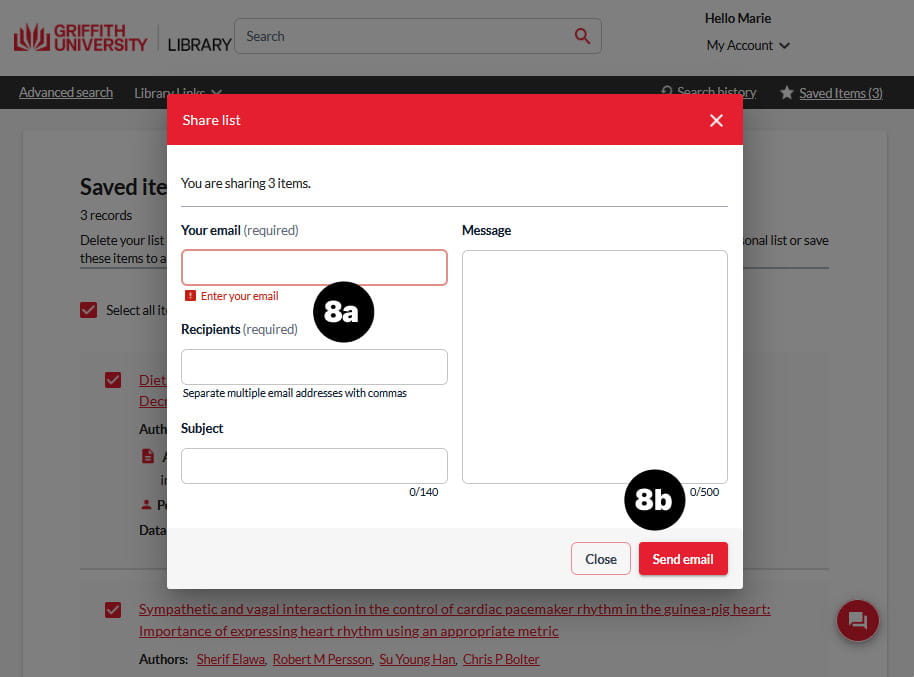
- To email items, Select all items or individual items and click Share.
- The Share list box displays with your email address prefilled:
- Add Recipients a Subject and Message (if relevant)
- Click Send email.
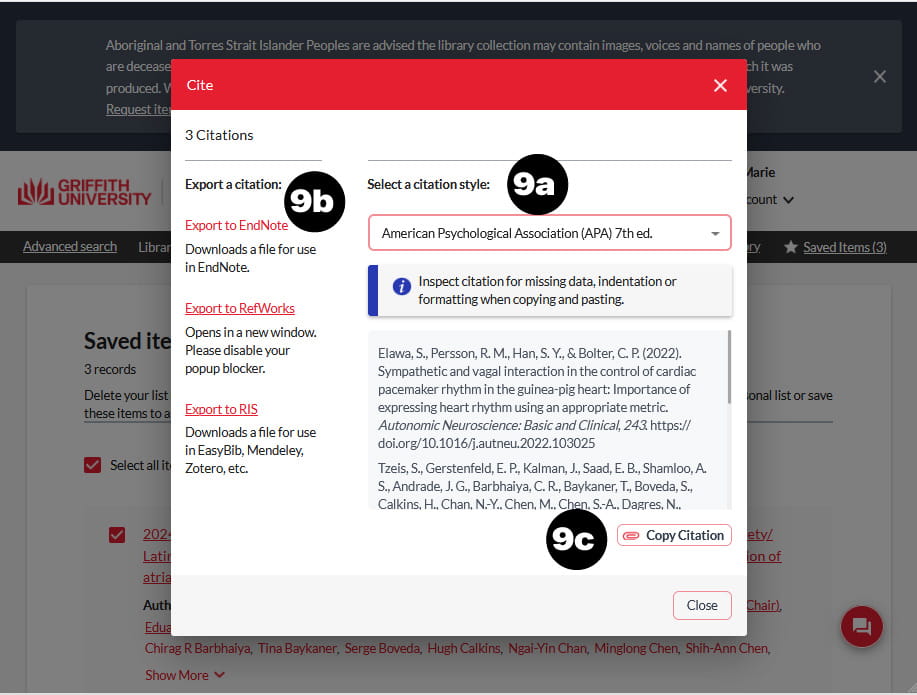
- To export citations, click Cite. The Cite box displays:
- Select a citation style from the drop-down menu.
- Click Export to EndNote or your preferred software. The items are downloaded as a file.
- Alternatively, you can click Copy Citation.
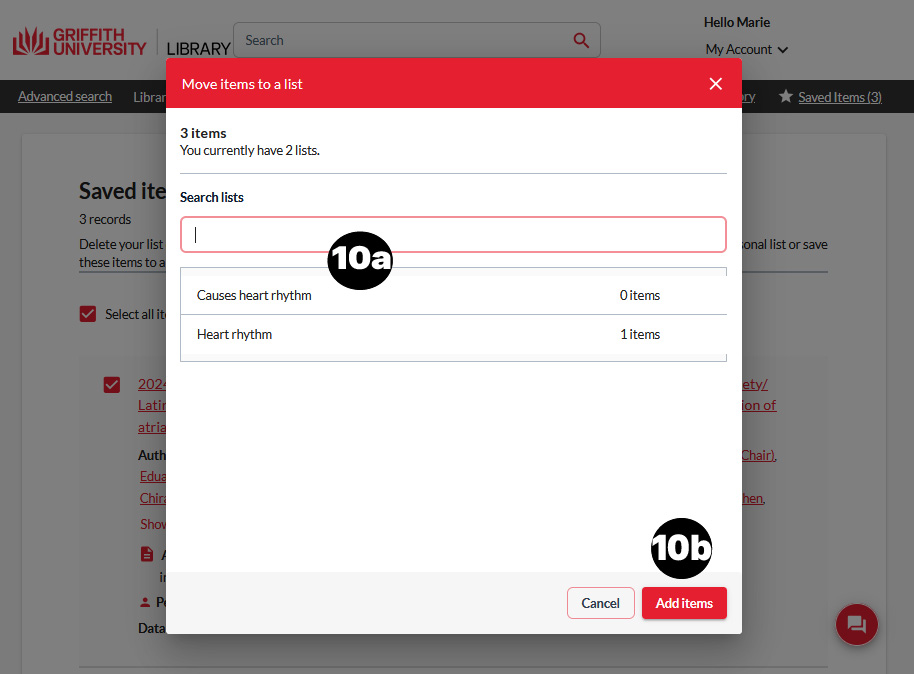
- To move items to an existing list, click Move. The Move items to a list box displays:
- Choose the required list.
- Click Add items.
- Items are moved to your list and can be accessed via your account.
Questions
We are here to help!
Find us in the libraries or contact us by phone or online.