MFA Setup instructions for Mac
Follow the instructions to set up the PingID app for Multi-Factor Authentication on a Griffith provided Mac computer or personal Mac computer.
GRIFFITH MAC
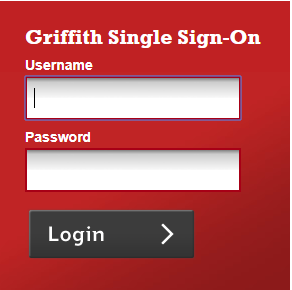
1. Login to the Griffith portal, or any Griffith system using Single Sign-on to access (e.g. email) from the browser > enter your sNumber and password.
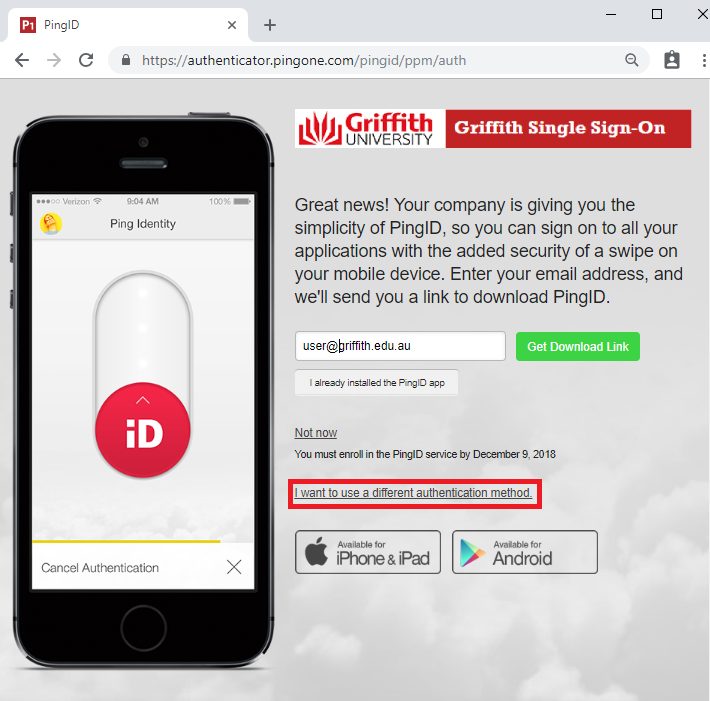
2. From the PingID registration screen > select I want to use a different authentication method.
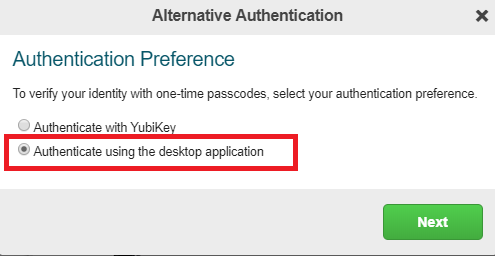
3. Select Authenticate using the desktop application > select Next.
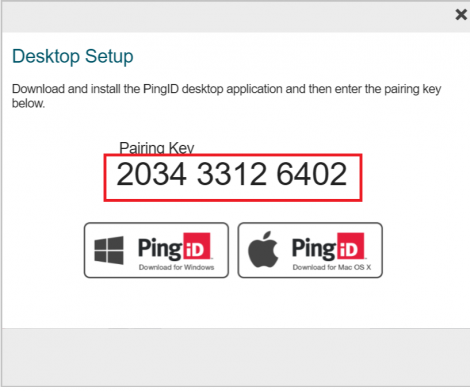
4. Copy the pairing key shown in the Desktop setup window.
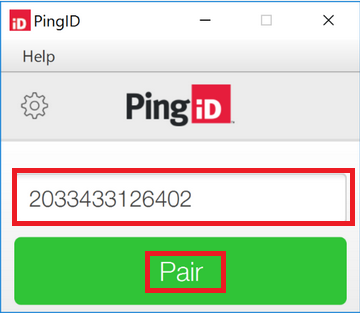
5. Open PingID desktop application > enter the pairing key you got in step 4 > select Pair.
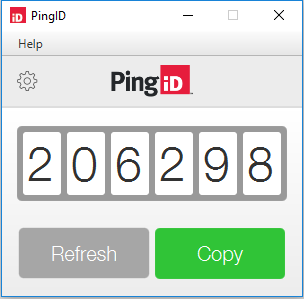
6. The PingID desktop App displays a one-time passcode > click Copy to copy the passcode.
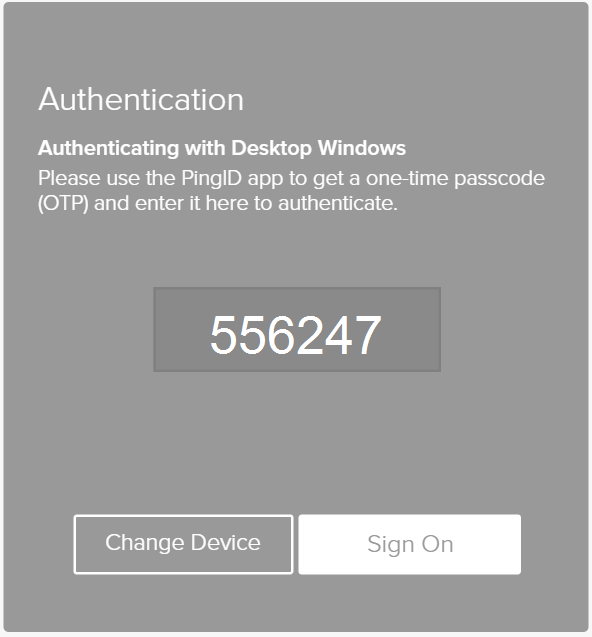
7. Paste the copied passcode into the Authentication window.
Note: Ensure the browser window is selected when you paste the passcode.
You can only use a passcode once > click Refresh to generate a new passcode if required.
PERSONAL MAC
1. Login to the Griffith portal, or any Griffith system using Single Sign-on to access (e.g. email) from the browser > enter your sNumber and password.
2. From the PingID registration screen > select I want to use a different authentication method.
3. Check Authenticate using the desktop application, select Next.
4. Copy the pairing key > you will use it in a later step.
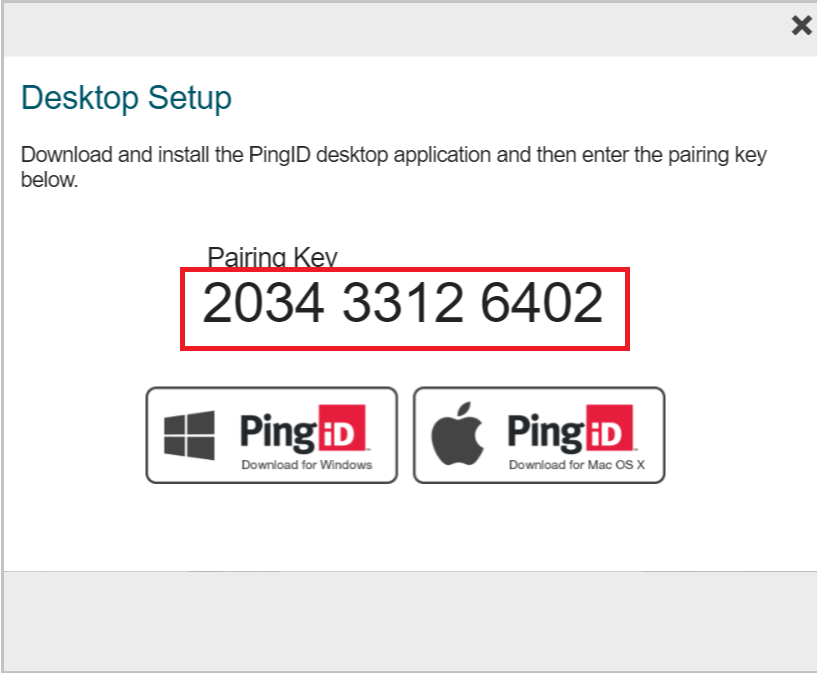
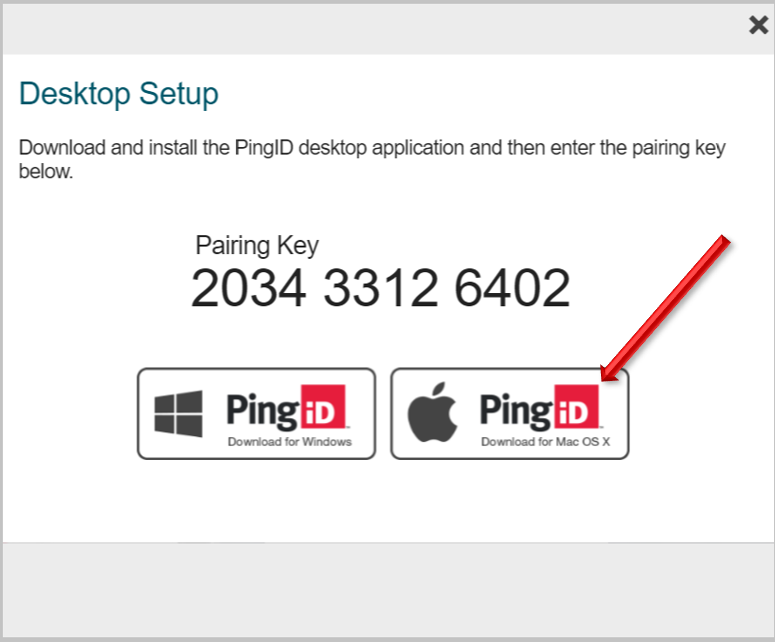
5. Select Download for Mac OS X > save the file to your local drive.
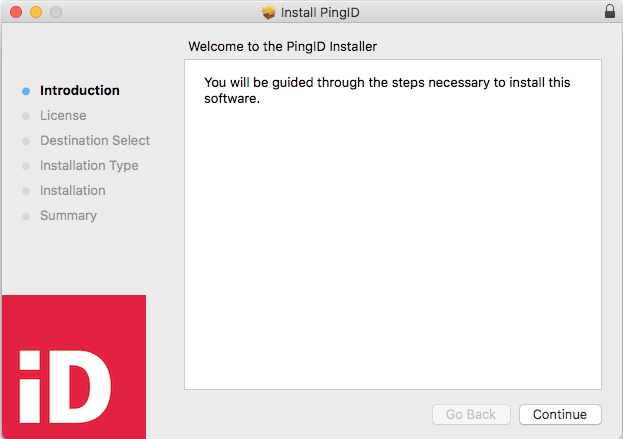
6. Open PingID.pkg to open PingID Desktop app installer > select Continue.
7. Review the Software License Agreement > select Continue and Agree.
8. Select location for PingID installation > select Continue.
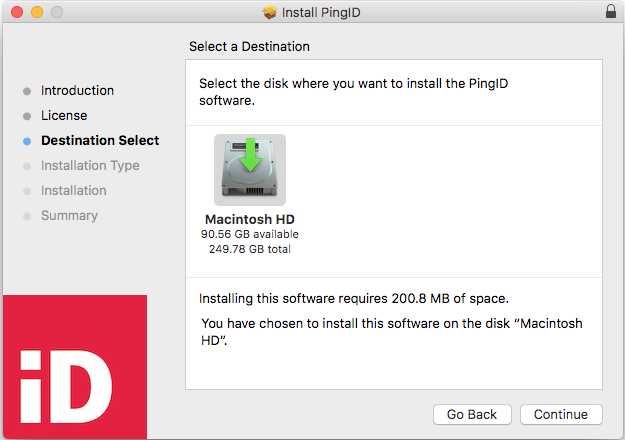
9. To change location to which PingID is installed > select Change Install Location > navigate to the new location, otherwise select Install.
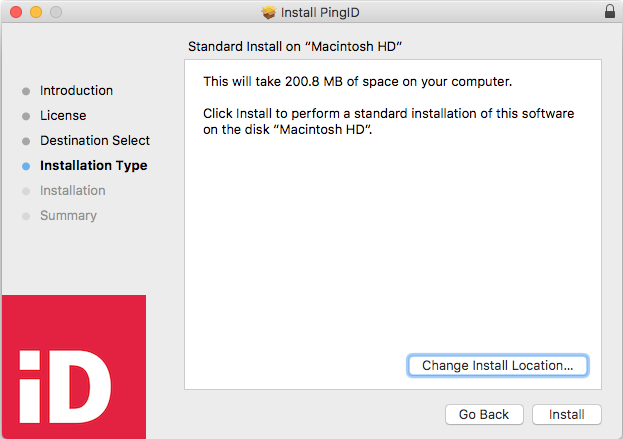
10. If prompted > enter your system password
11. Open the PingID desktop App > enter the pairing key from step 5.
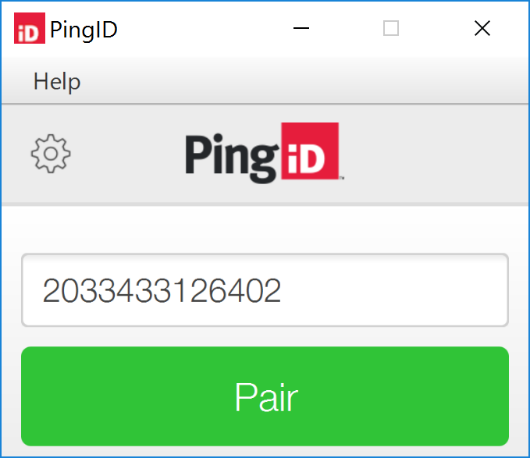
12. The PingID desktop App displays a one-time passcode > click Copy to copy the passcode.
13. Paste the copied passcode into the Authentication window.
Note: Ensure the browser window is selected when you paste the passcode.
You can only use a passcode once > click Refresh to generate a new passcode if required
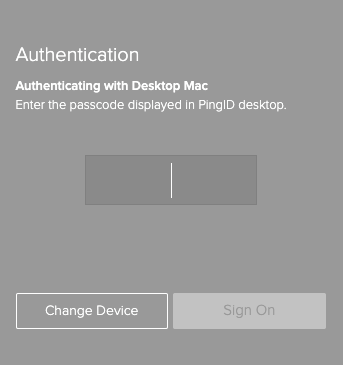
14. The green check mark indicating authentication is successful will appear and the Griffith resource will open.