Discover more about your 'Welcome to Griffith' Team
Learn more about your Welcome Team, including how to get started, answers to frequently asked questions, accessibility support and protecting your privacy.
About your Team
Your 'Welcome to Griffith' Teams space allows you to connect with other new students and access help and advice when you need it in your first few weeks as a Griffith student. All students commencing in the upcoming trimester are invited to join a Welcome Team that aligns with their studies.
The Welcome Team remains active until just after census date in your first trimester (usually around Week 4).
There are student mentors in the Team to point you in the right direction and give you the edge you need to succeed at university. If there is ever anything you need, just let our mentors know by using the tag @mentor in your post and they will be happy to help.
Getting started
You can reply to a conversation by clicking on ‘Reply’ under an existing post.
Or you can use the ‘New conversation’ button to start a new line of conversation. |  New conversation button in Teams New conversation button in Teams |
If you want to be able to format the message, use the Rich Text (format) icon. |
|
 Format button
That way you can also add a subject, so you can find the conversation quickly if you need to go back to it later.
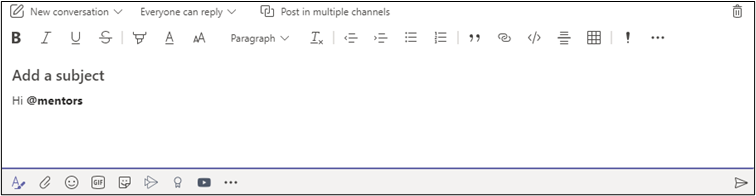
In any conversation, you can @mention people when you want to get their attention or need them to see your message. Type @ and then their name—don't leave a space.
For more information, see Microsoft support's work in channels.
Remember, you can explore the other options in the menu underneath the message box—have fun with those emojis and gifs!
TIP: If you are not sure who the Mentors are, use @mentors and they will be notified.
You can have private conversations using the Chat function in Teams.
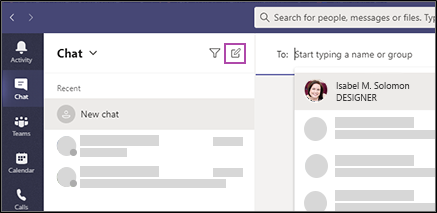
Select Chat in the menu on the left and click on the pencil to create a new conversation.
You can chat with multiple people too, which can be a great way to create a study group.
|
You can find out more about private and small group chat at Microsoft Teams chat.
You can manage how you are notified about activity in the Team. Click the circle in the top-right corner with your initials or photo and choose Settings > Notifications.
You can choose to get an email notification and/or a notification on your screen.
Microsoft support has more information on managing notification settings.
Channels are used to organise conversations.
Most of the time, your Welcome Team will have just one channel, called 'General', so you don't miss any of the discussion.
During Orientation Week you may see extra channels appear in the list—these will be for use in Orientation events.
Commands are shortcuts for performing common tasks in Teams eg update your status, go to a specific channel, show your recent files and saved messages and more.
Currently, commands are only available in the desktop or web app, not on mobile devices.
Type / in the box at the top of Teams and you will see a menu of all the commands currently available. Select the command you want, press Enter and Teams takes care of the rest.
Microsoft support has more about using commands in Teams.
TIP: You can also press Alt+K (Windows) or Option+K (Mac) to open the command list.
Frequently asked questions
Your privacy
Your Teams account is associated with your Griffith log-in, so your name automatically appears in Teams you have joined.
More information on student privacy is available in the Griffith University Protecting Student Privacy policy.
Accessibility
You may like to check out the below accessibility guides for Teams and Microsoft Office:
Accessibility support for Teams
Microsoft Office Accessibility Centre
You may also consider contacting Griffith's Student Disability and Accessibility to discuss support that can assist you in your studies.
Student conduct and social media
Griffith's Social Media Guidelines recognises the value of social media as a professional tool and acknowledges the responsibilities staff and students have when communicating in online networks.
The Student Charter also describes Griffith's values and commitment to its students, and the expectations the University has of its students.